Do this first: How to add yourself as a host for meetings
This also works to add additional hosts.
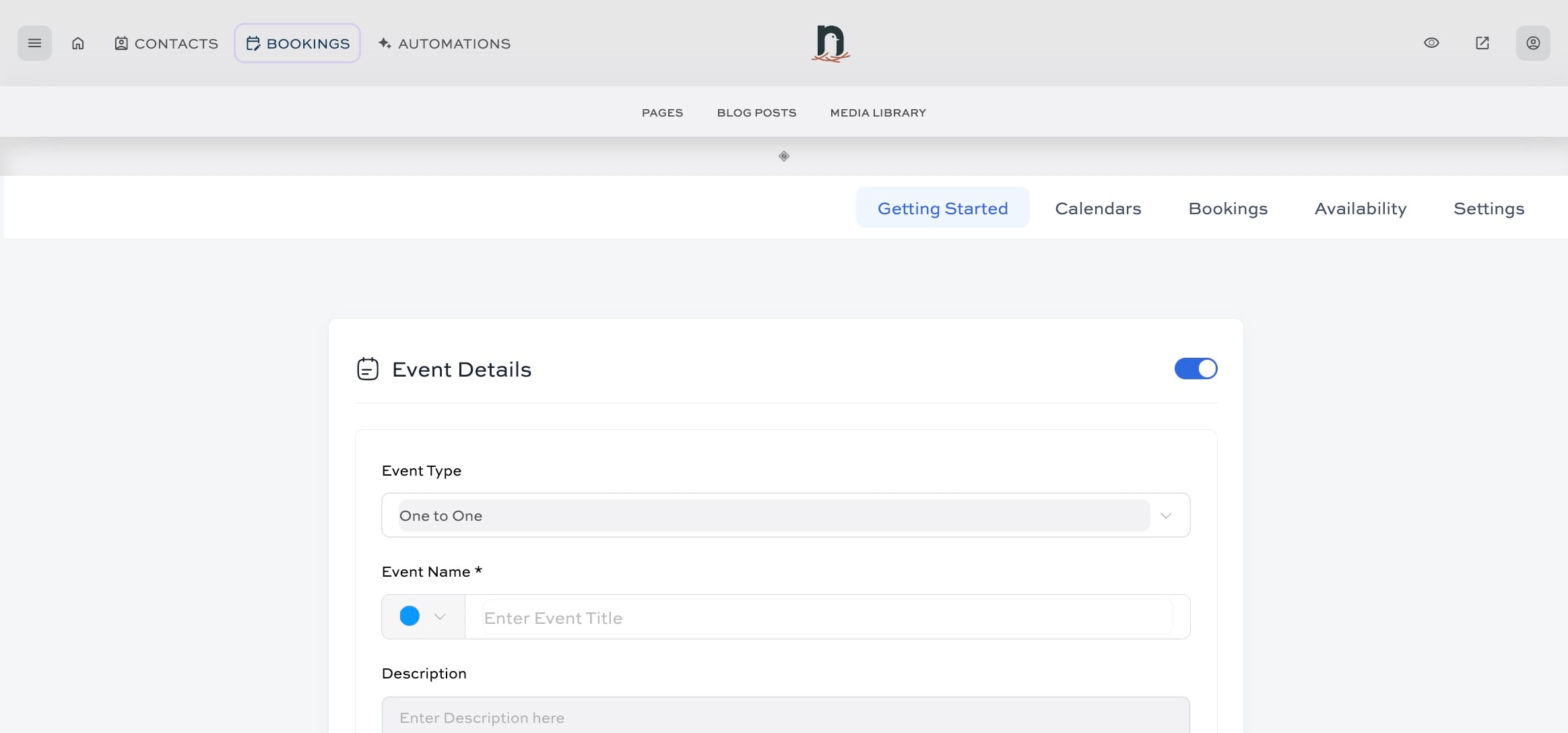
Click on "BOOKINGS"

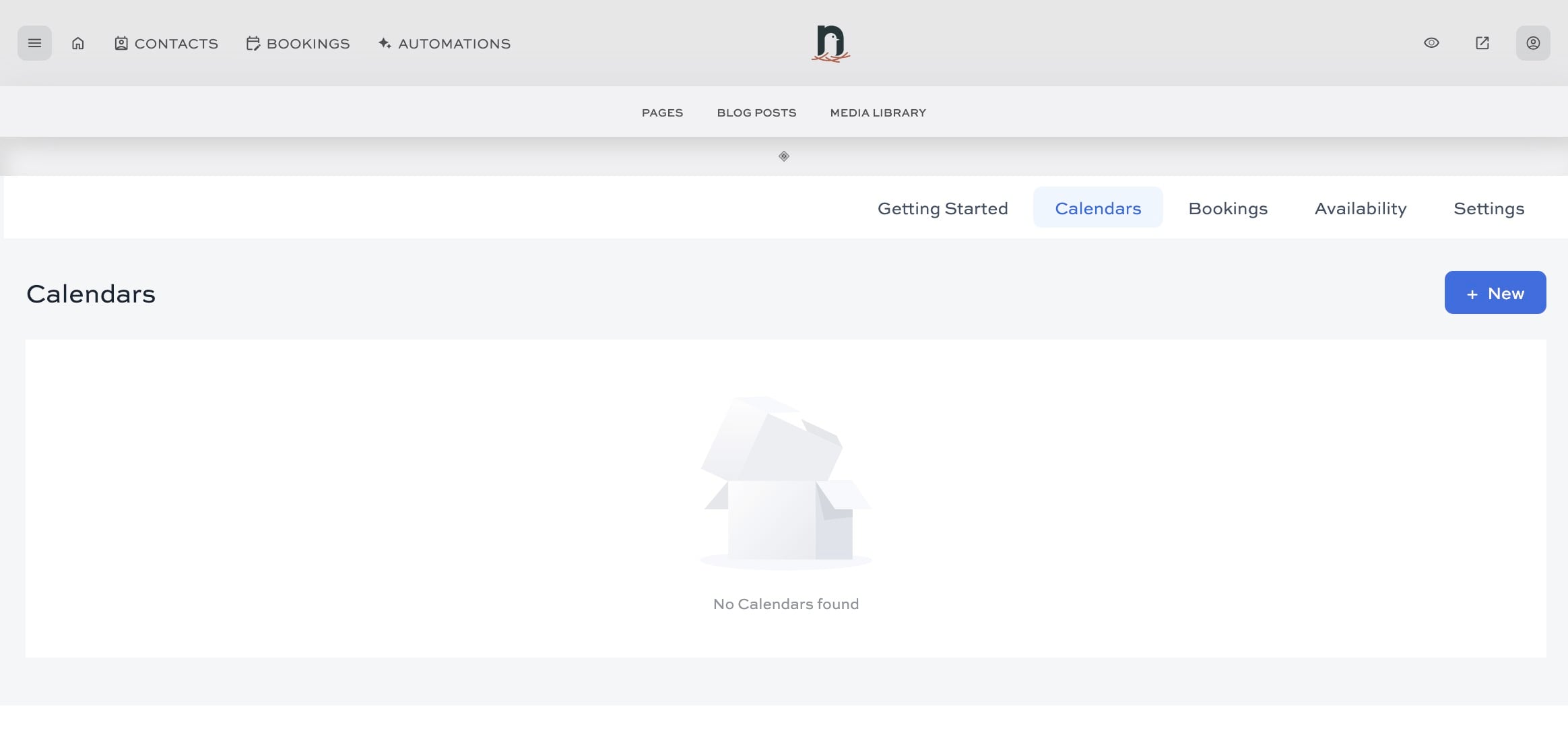
Click on "Calendars"
Click on "+ New"
Click on "Add New Host"
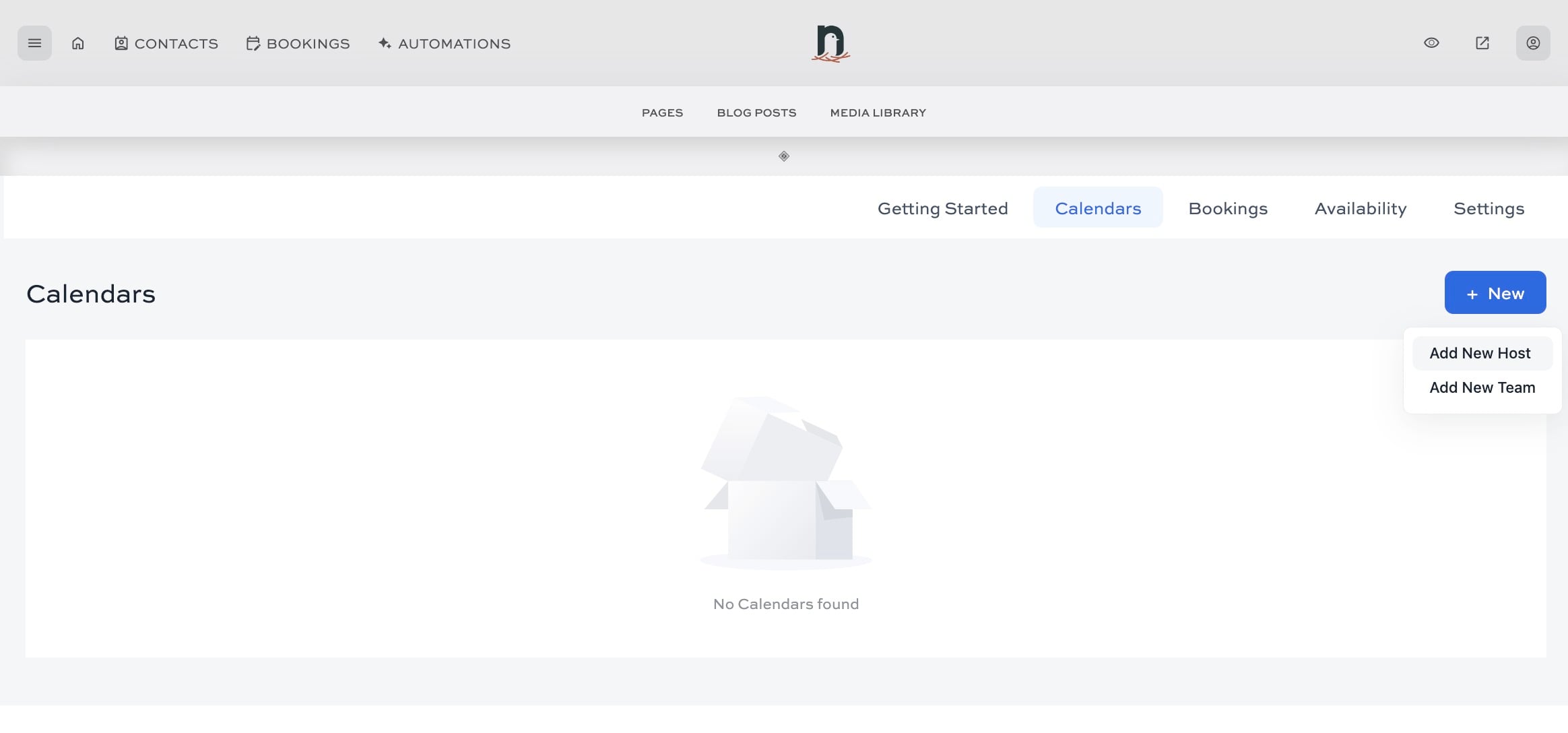
Click here
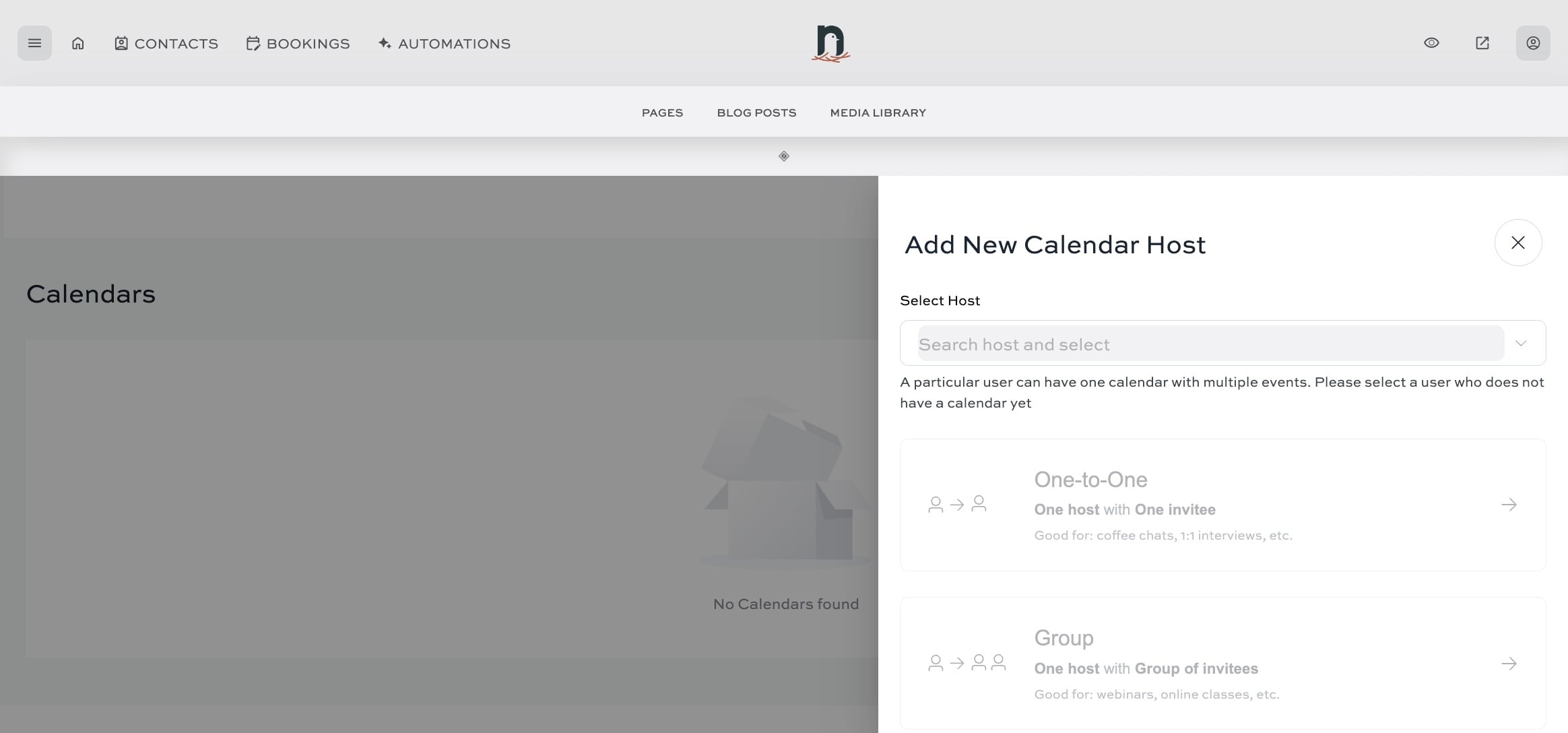
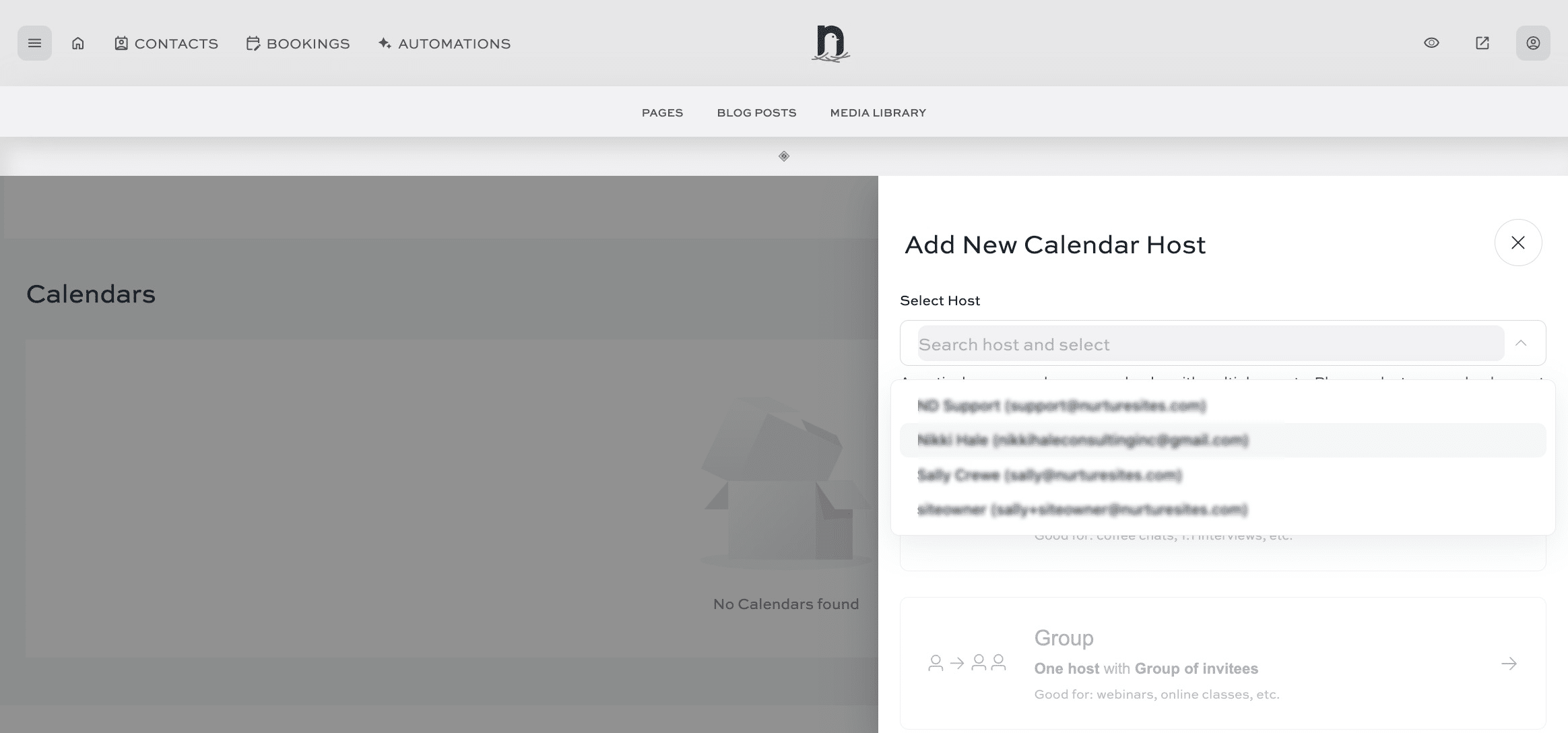
Select the host (usually yourself) from the list of users on your website.
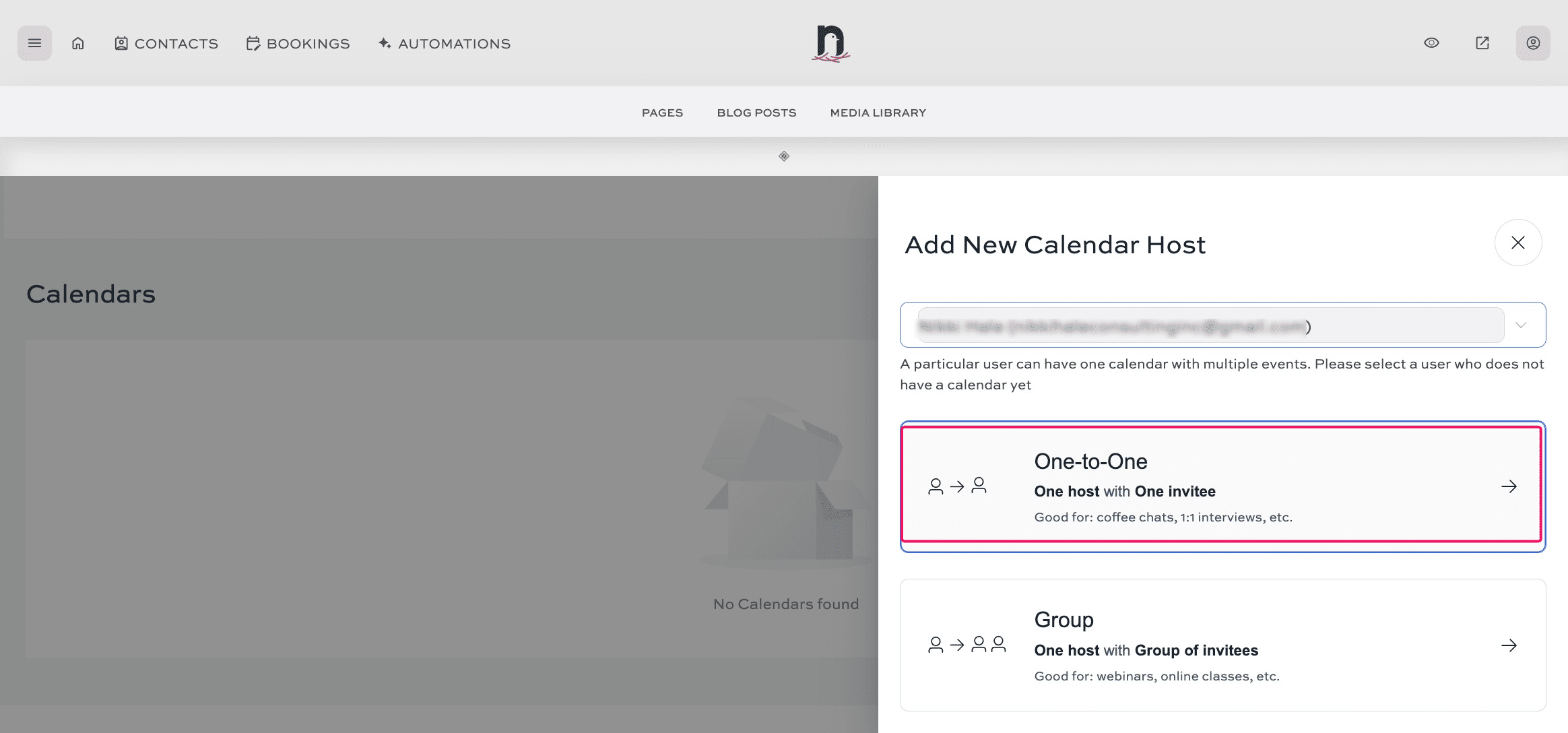
Select the meeting type you'll mostly use (this will become the defaut meeting type, but you can also add other types later)
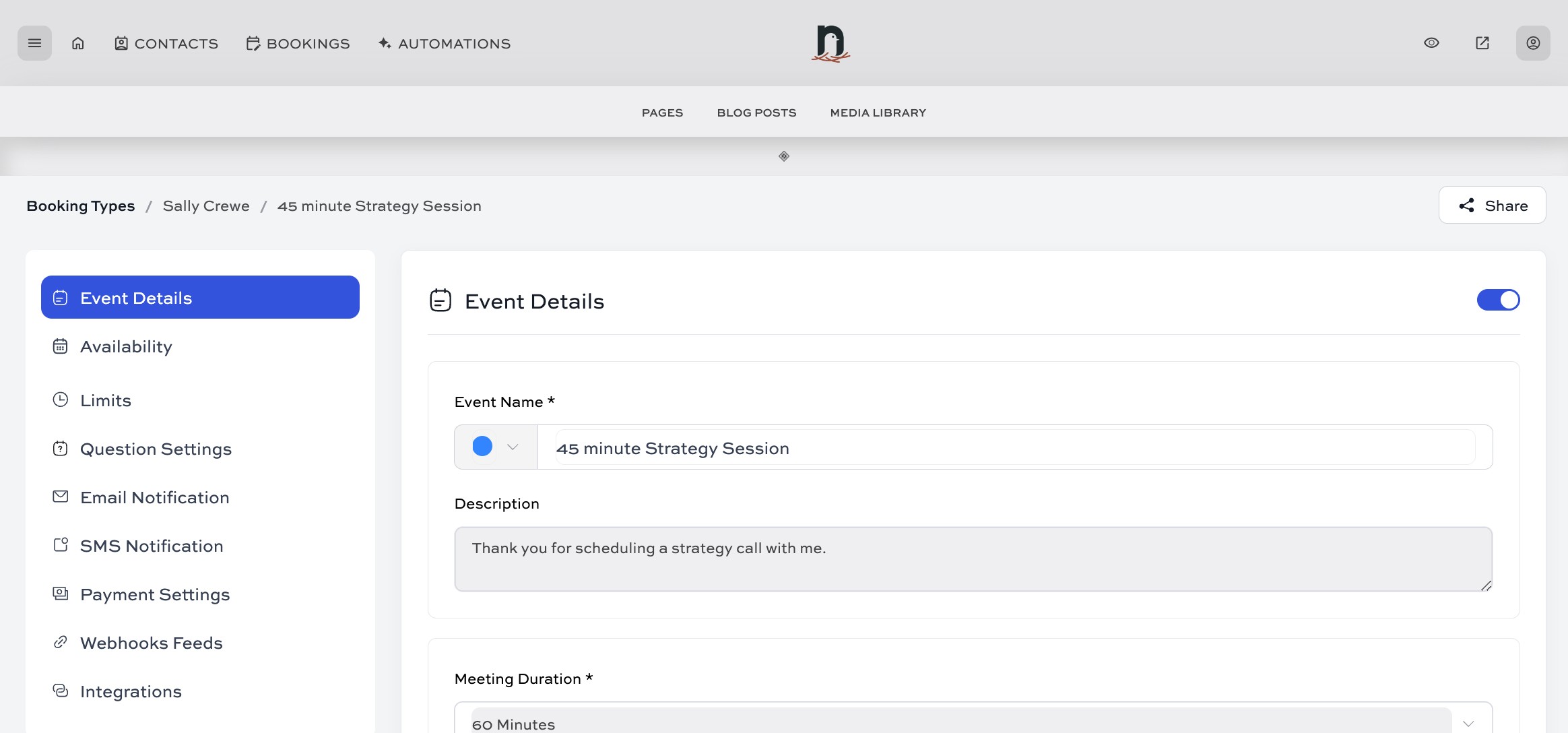
Give your event type a name
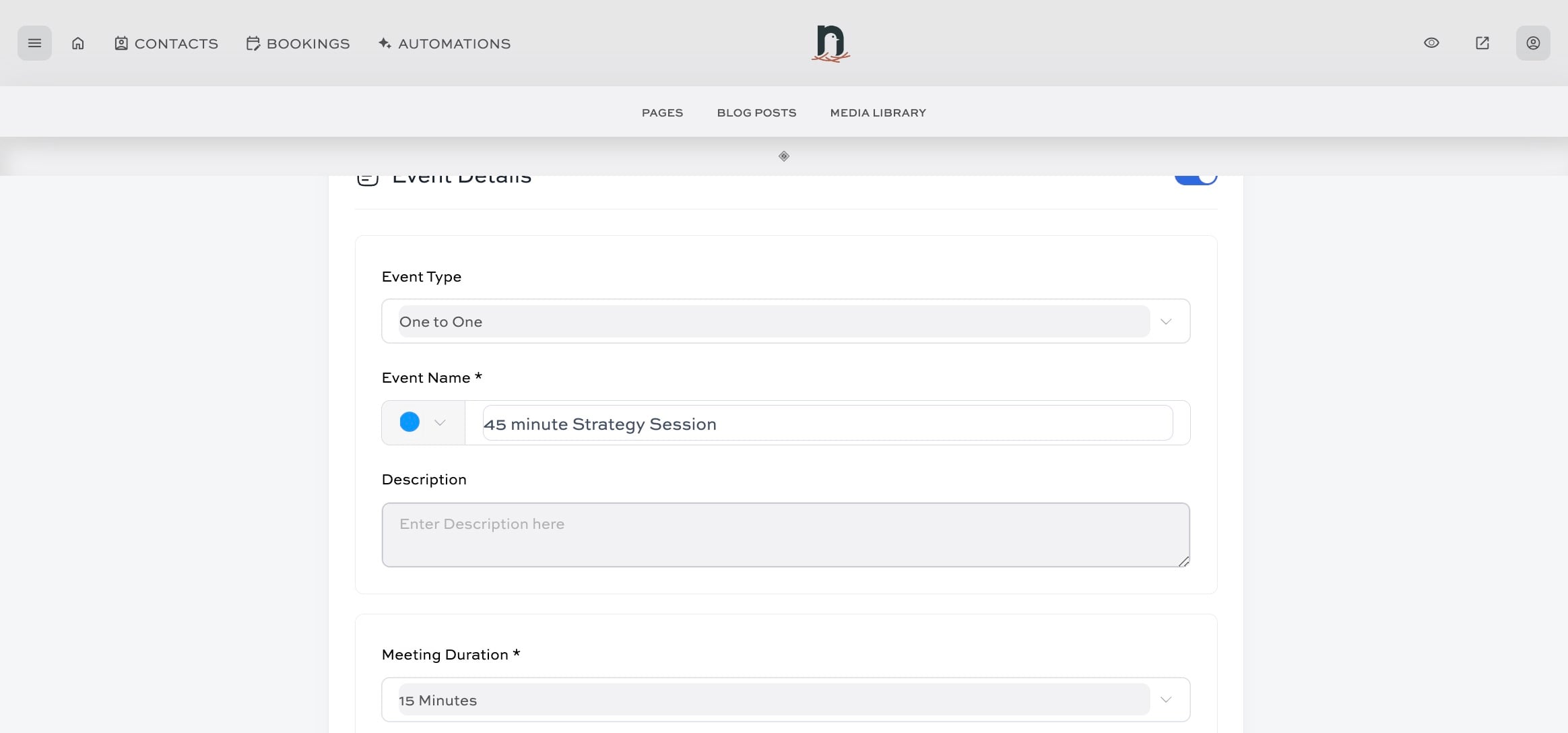
Add a description. This will appear on the calendar itself, so it's good to keep it brief.
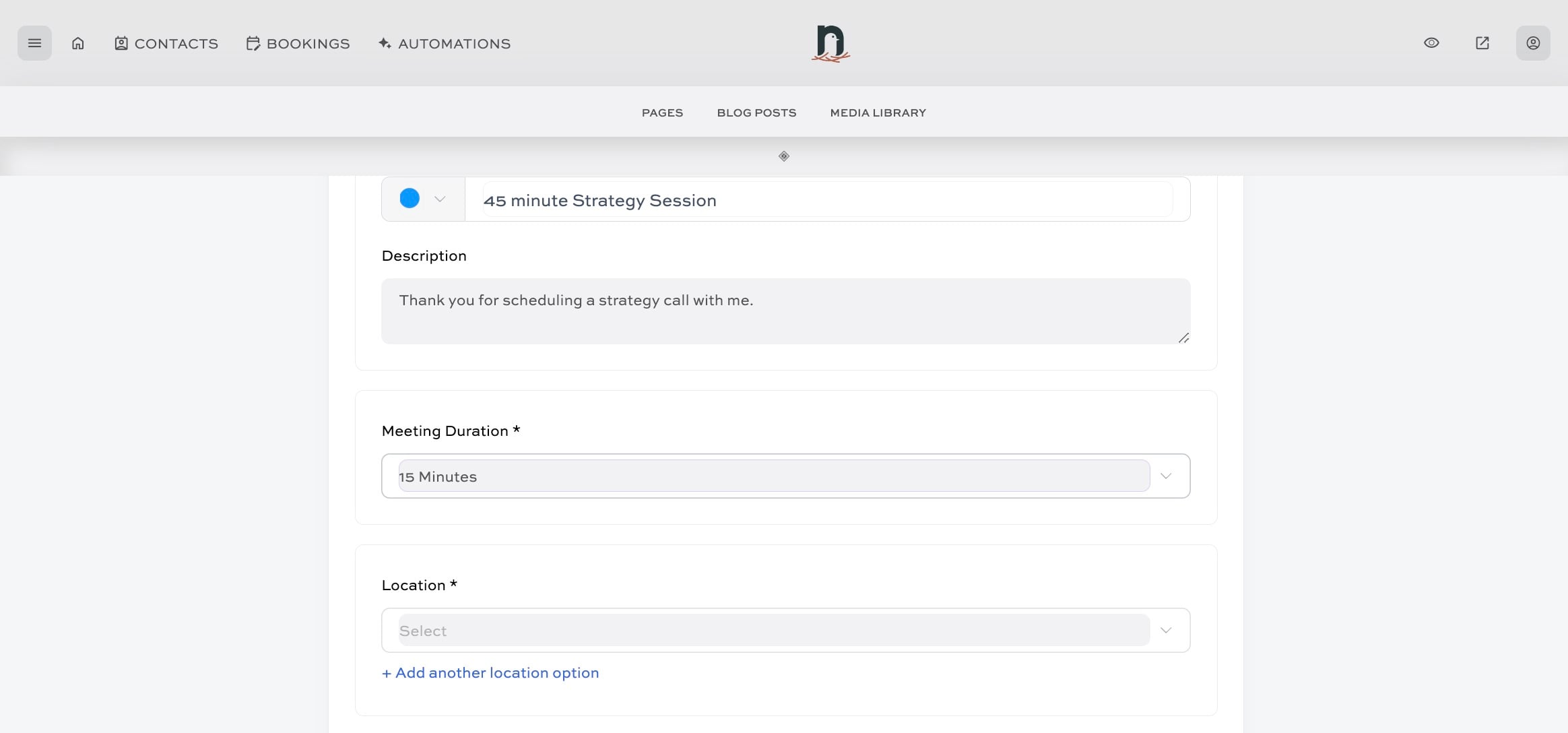
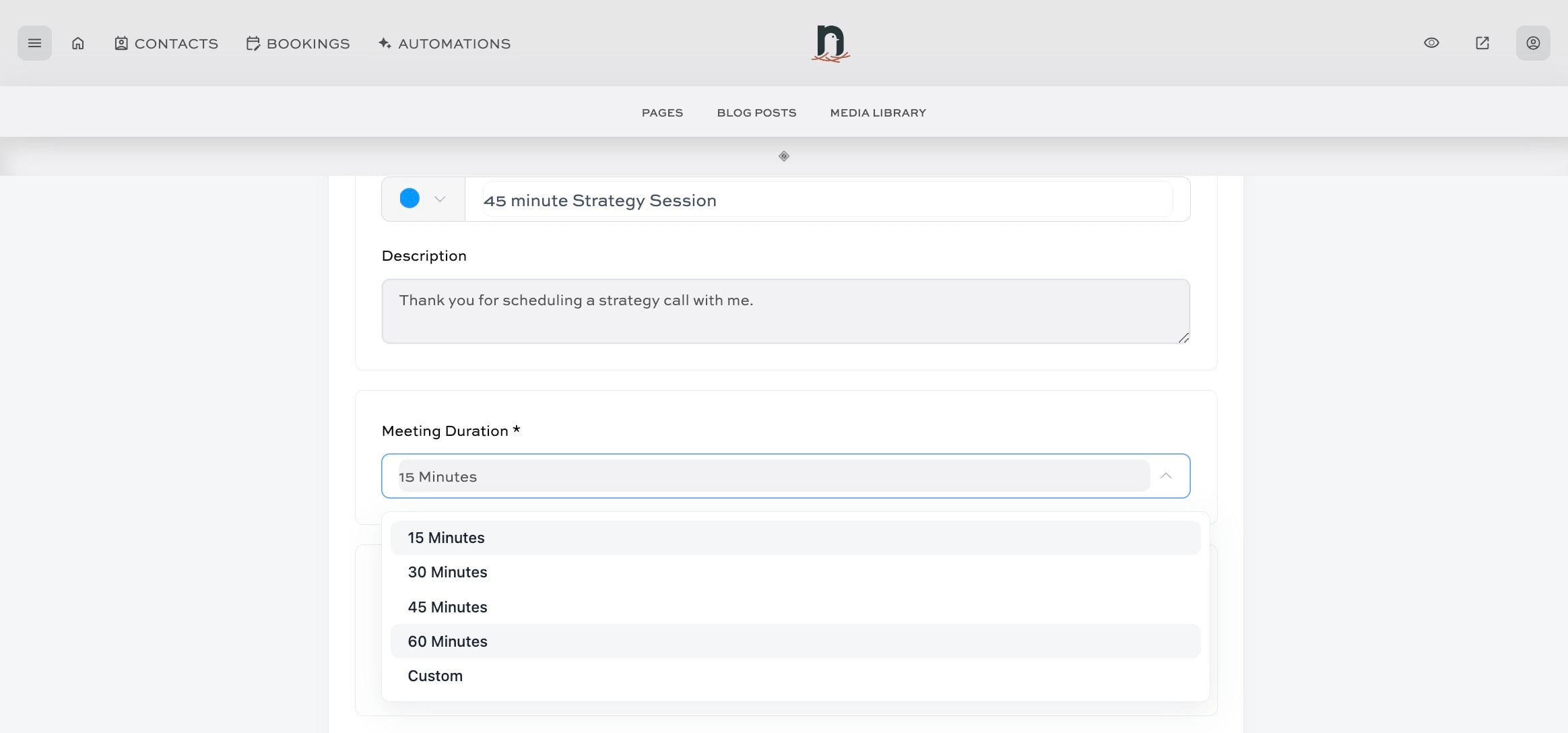
Select the Meeting Duration
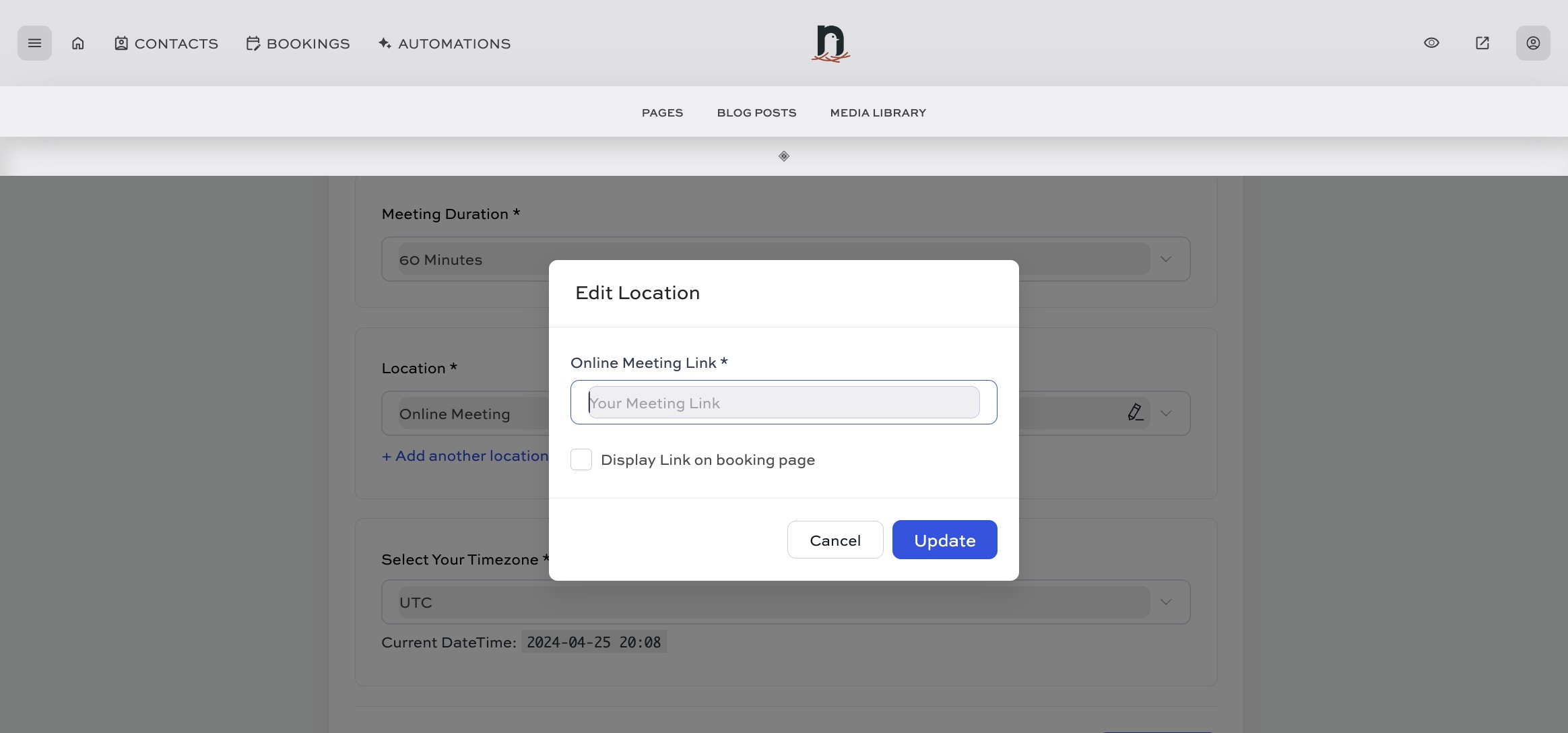
Select a 'Location'.
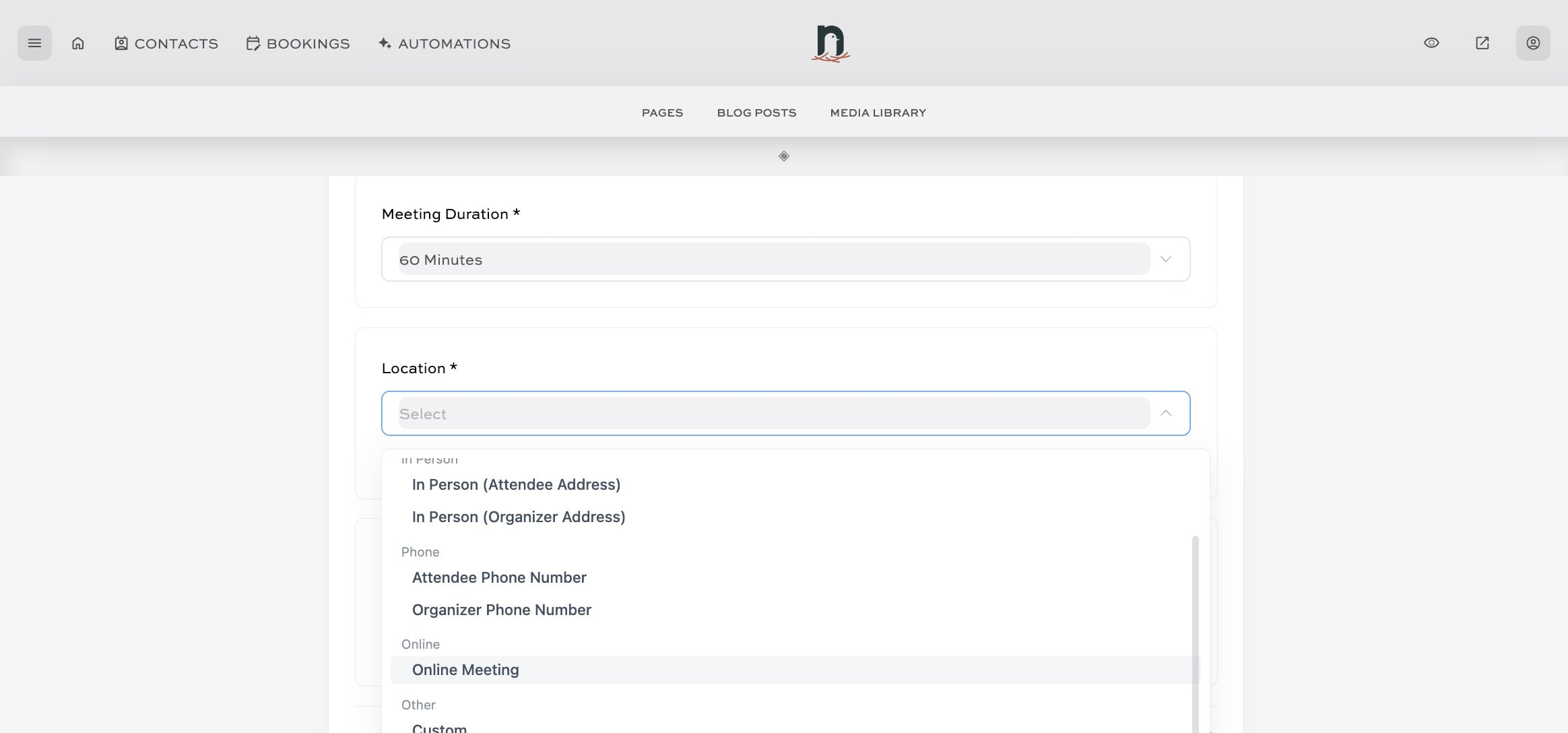
If you don't have a recurring meeting link, you can skip this step and just click 'Cancel' to close the pop-up.
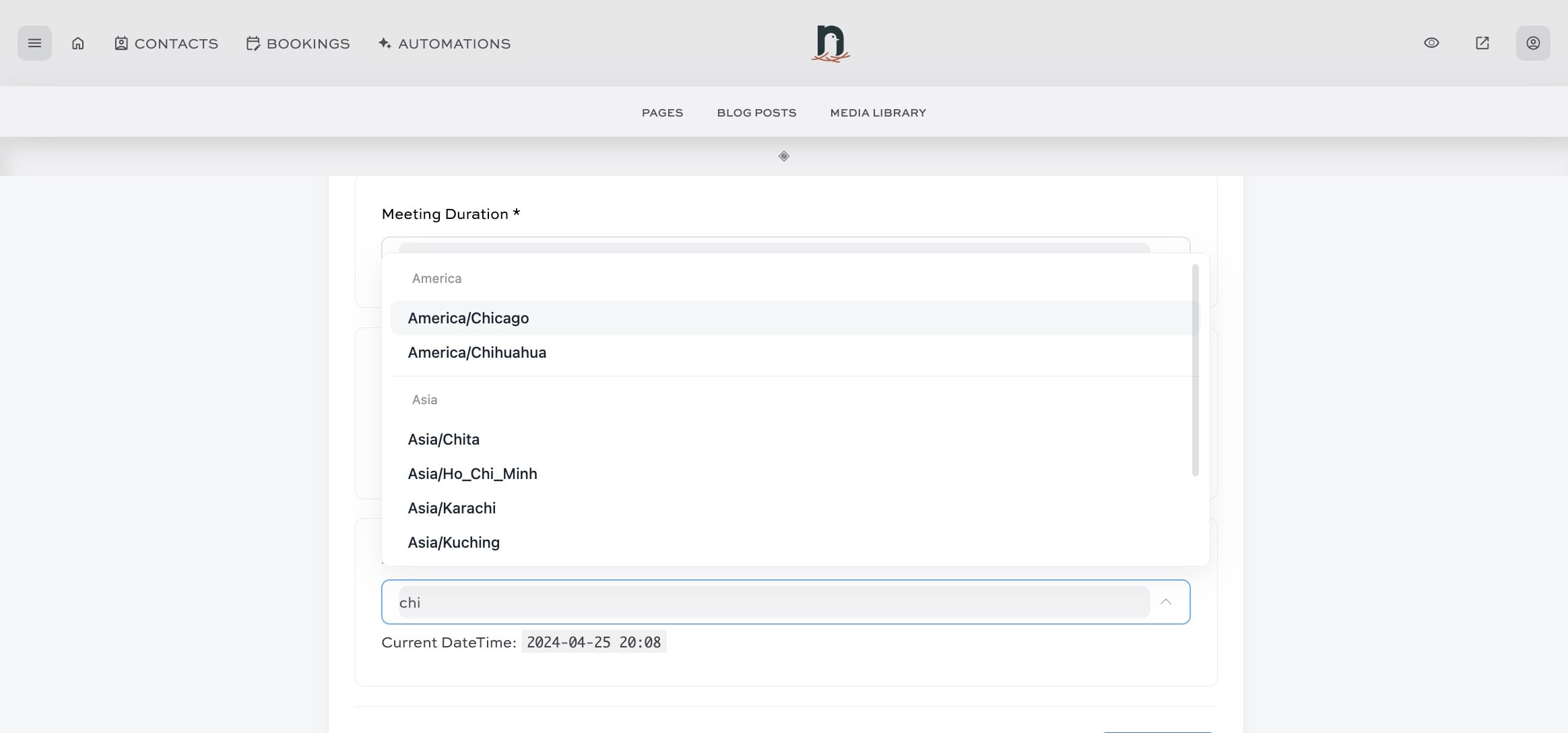
Select your timezoneSelect your timezone
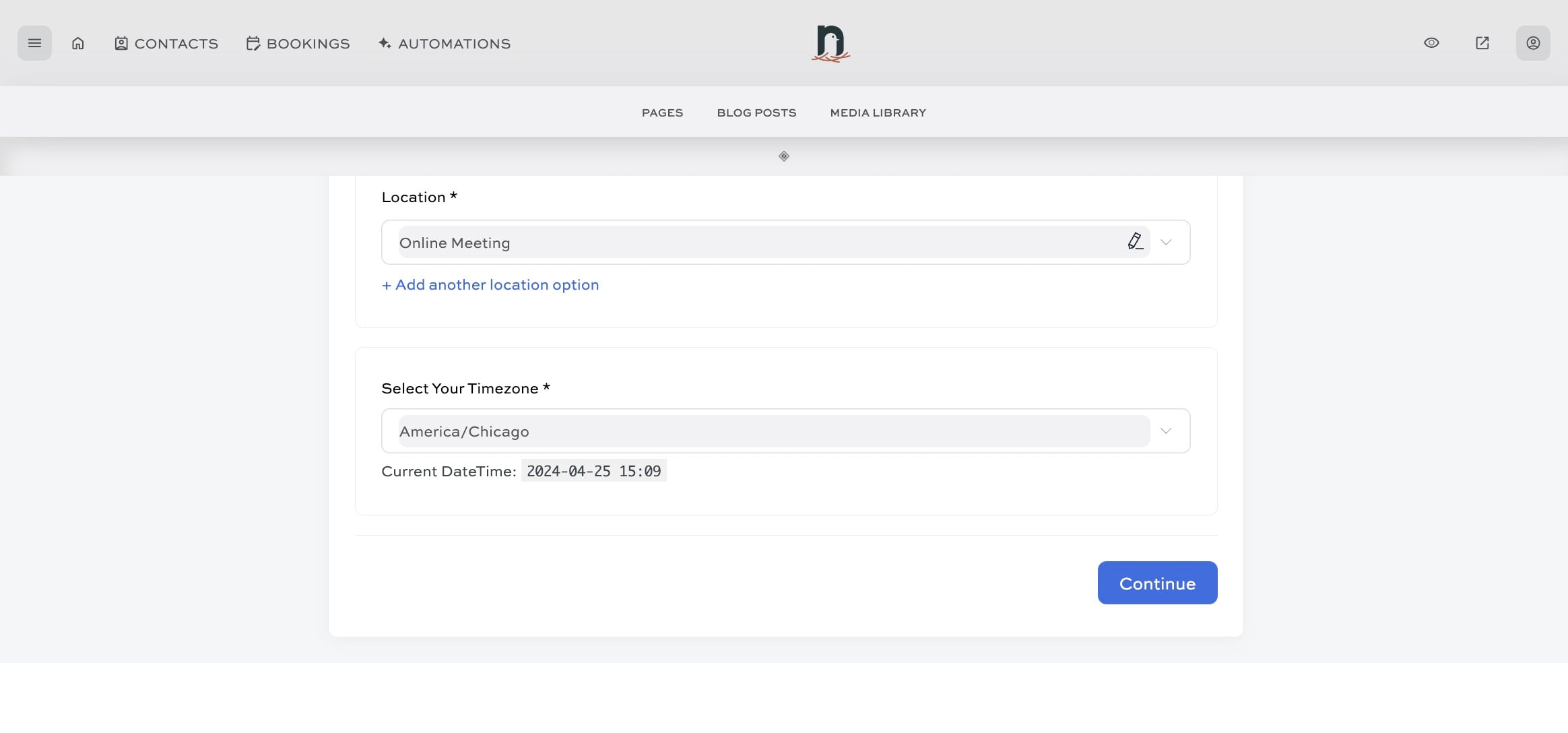
Click on "Continue"
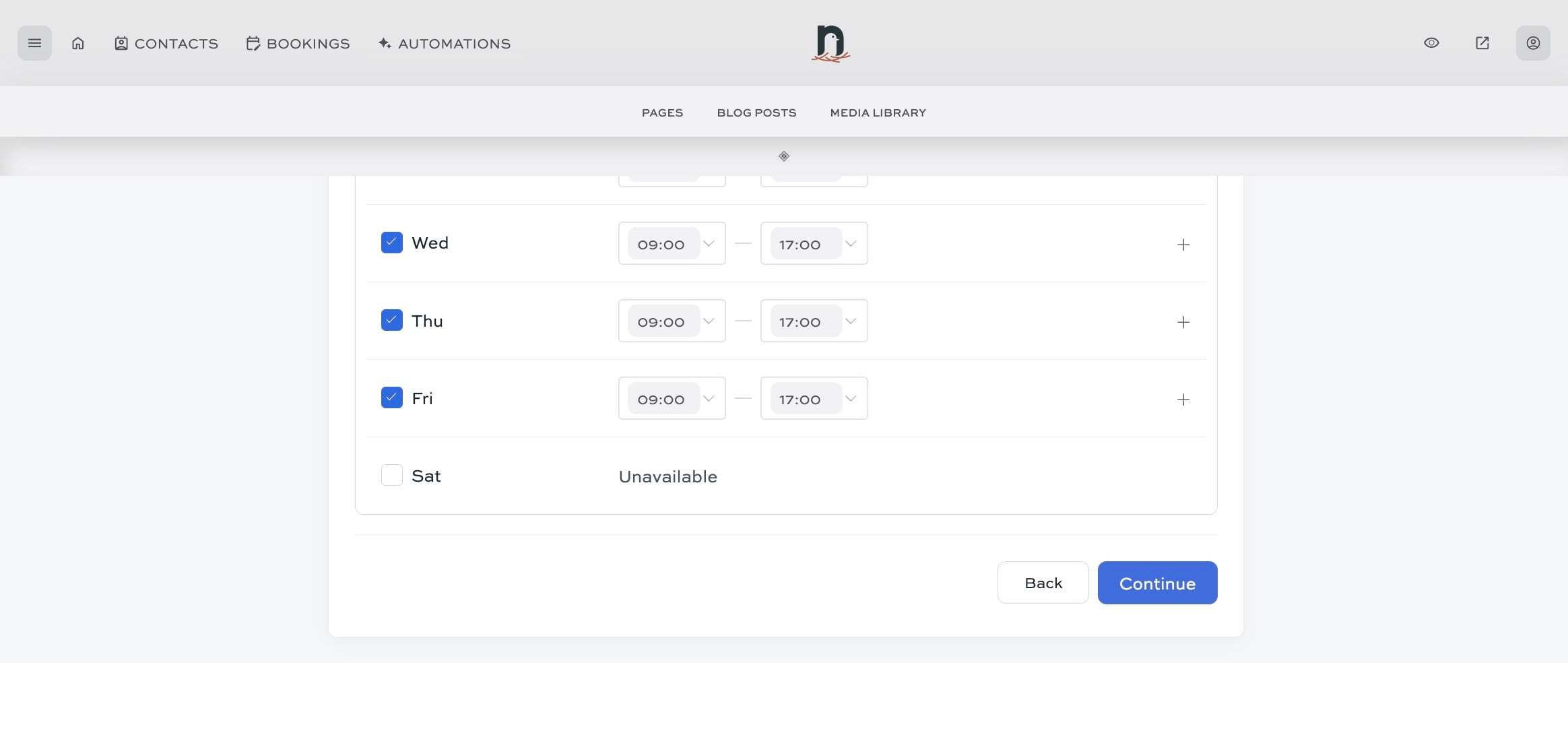
Set up your availability hours (or skip for now), then click on "Continue"
You're all set! 🚀 If you haven't yet connected your Google Calendar (or other extternal calendar), do that next.