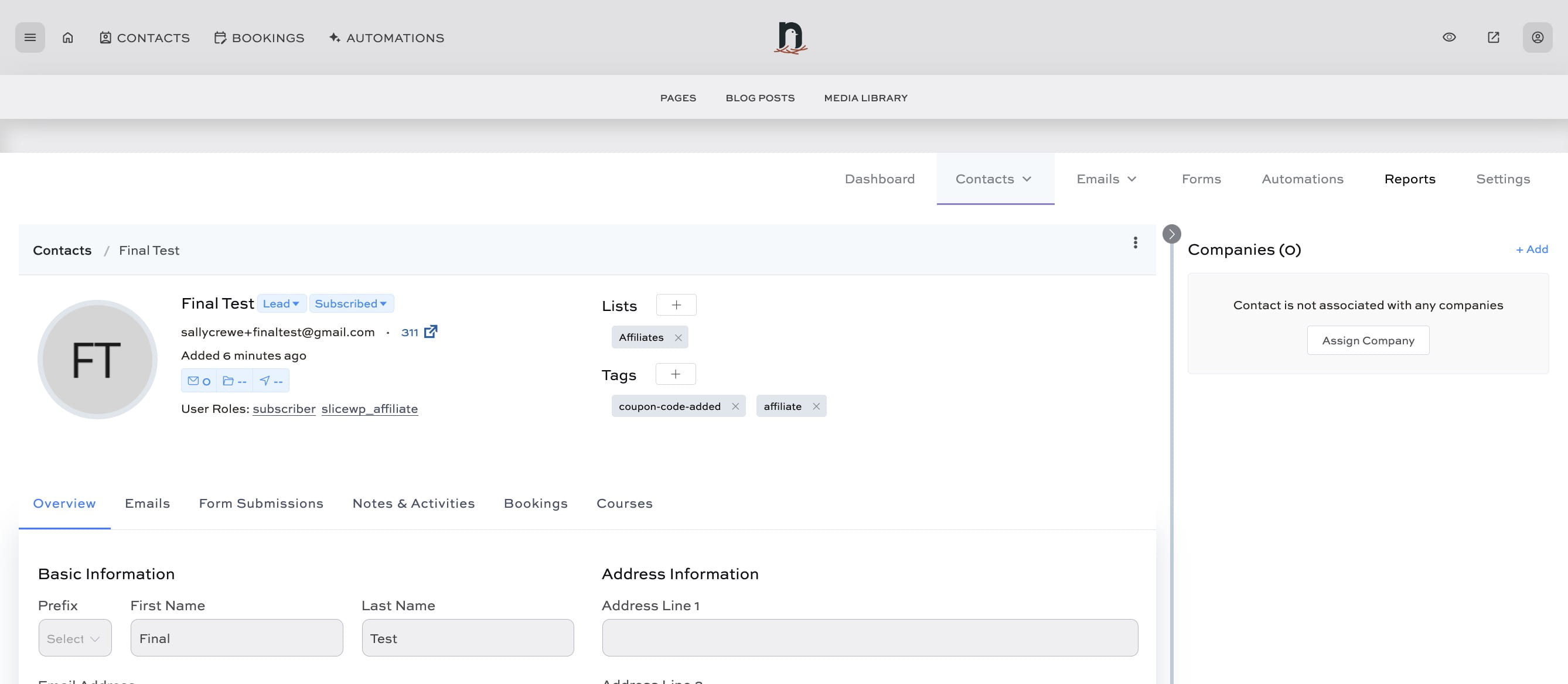
Adding coupon code and tag to contact
May 30, 2024●
1
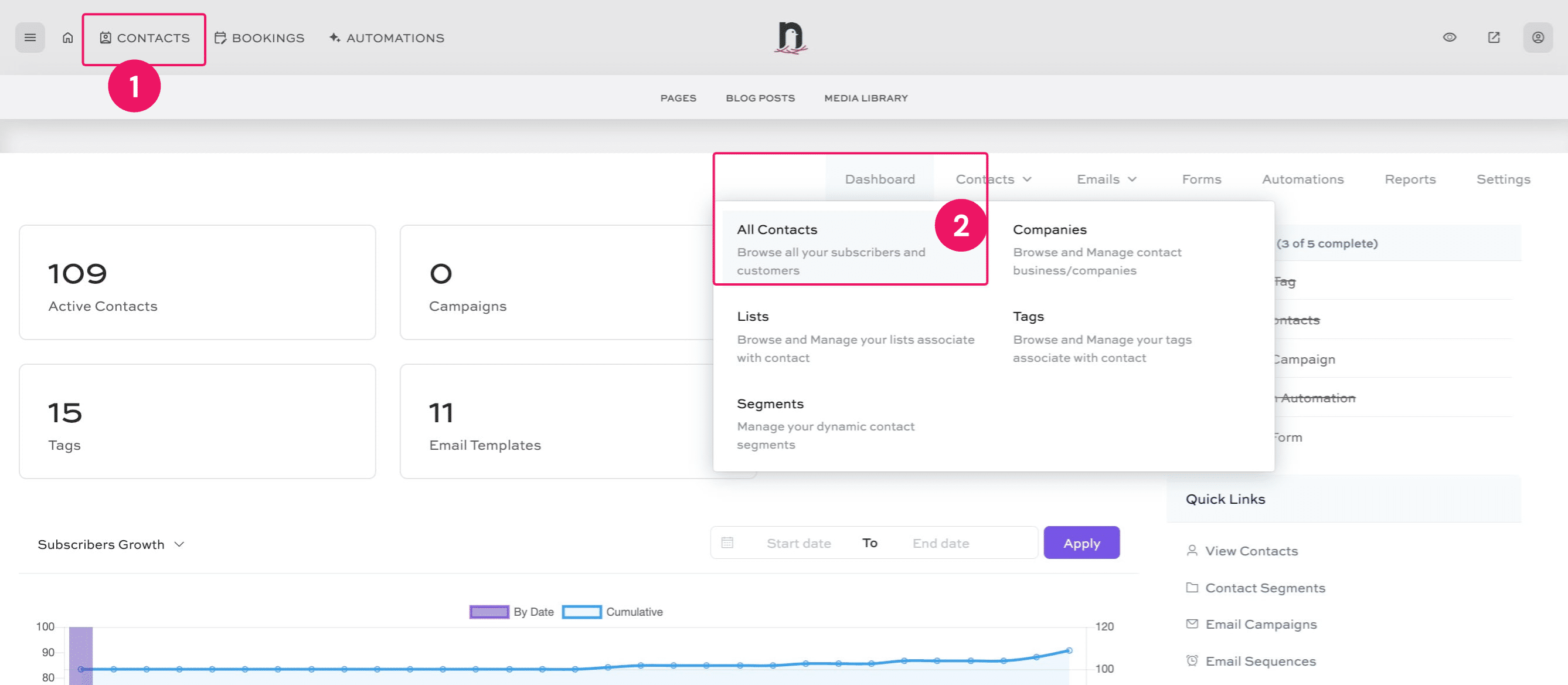
Click 'CONTACTS' to load the CRM dashboard, and then navigate to 'All Contacts'

2
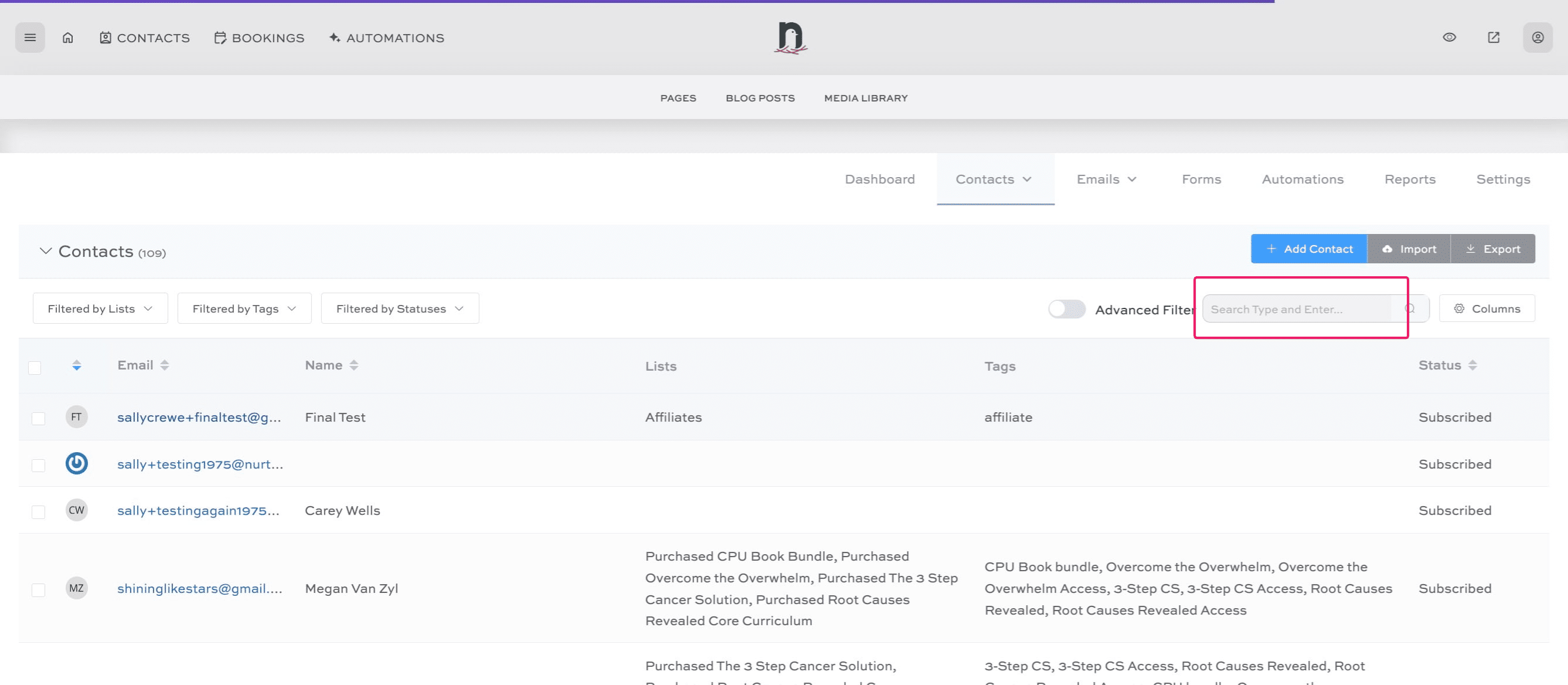
Select the new affiliate's contact record (if you can't see it, you can use the search box)
3
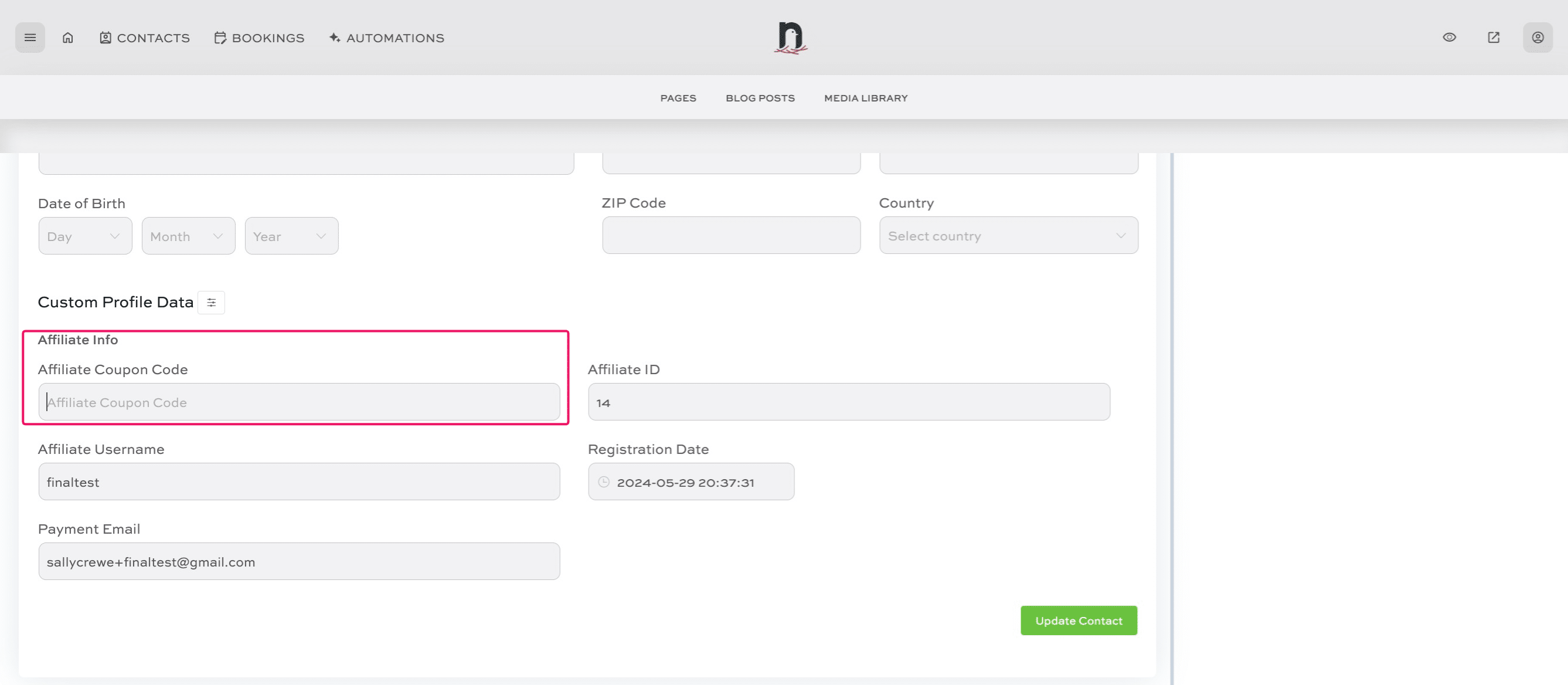
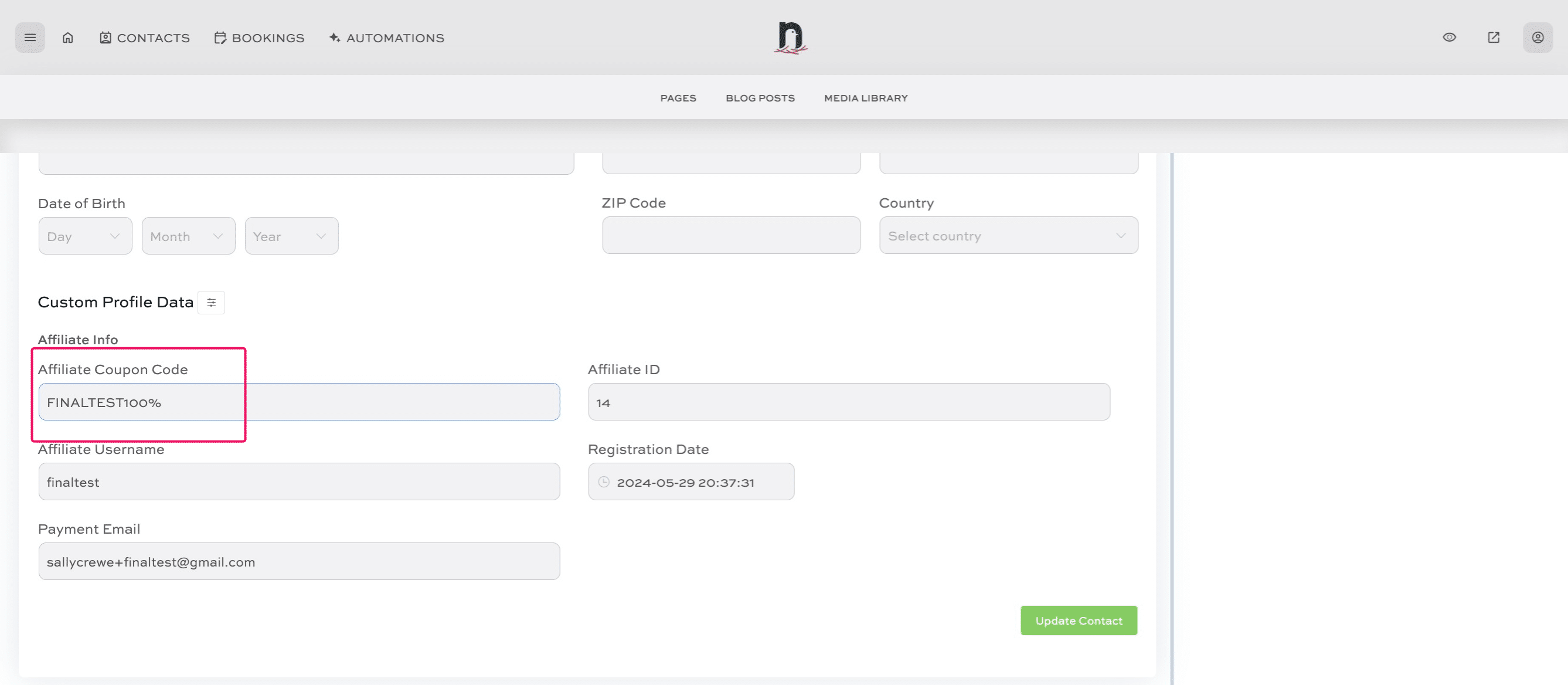
Inside the contact's record, scroll down to the 'Affiliate Copon Code' field.
4
Enter their coupon code and then click on "Update Contact"
5
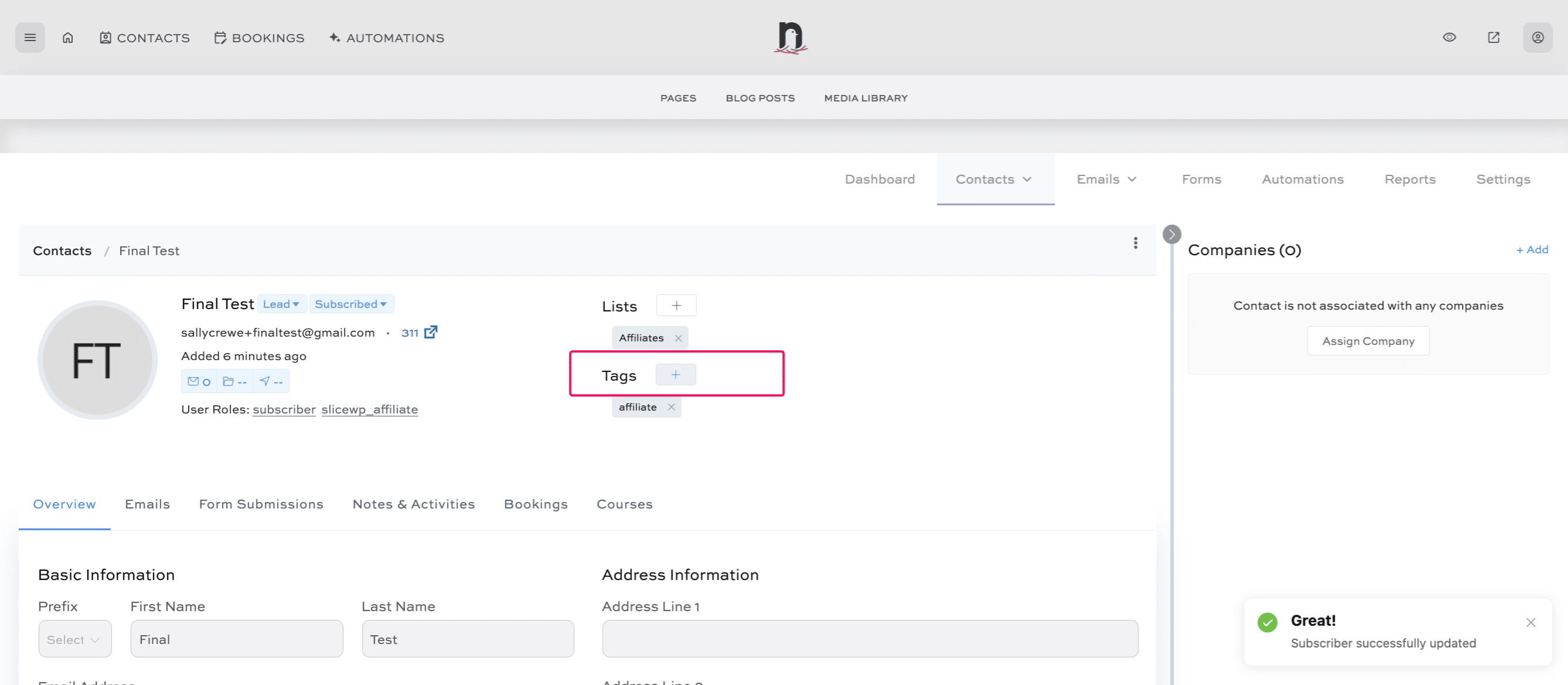
Scroll back up that page, and click the '+' next to 'Tags'
6
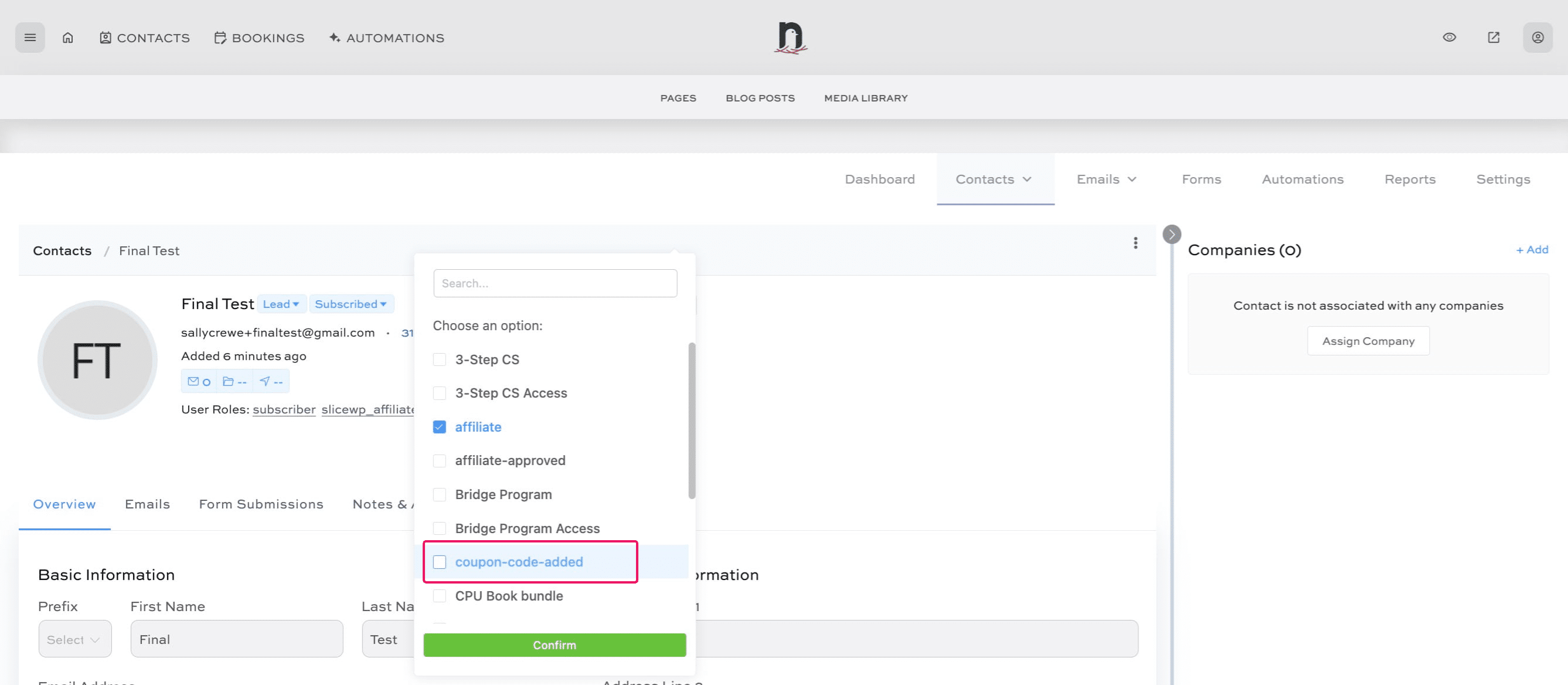
Select 'coupon-code-added'
7
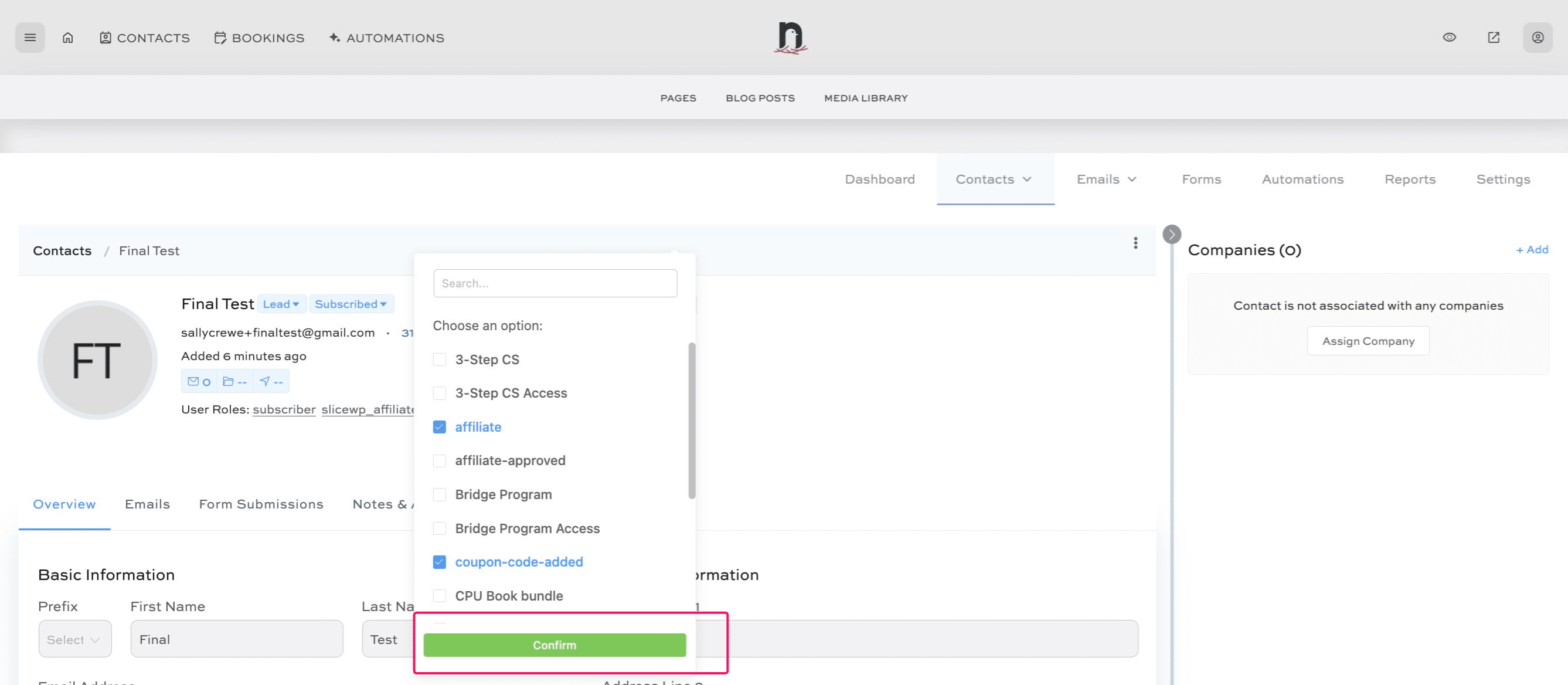
Click on "Confirm"
8
The addition of the tag triggers automatically their welcome emails. You are done! 🚀