Deleting unwanted sections of a page
Apr 24, 2024●
1
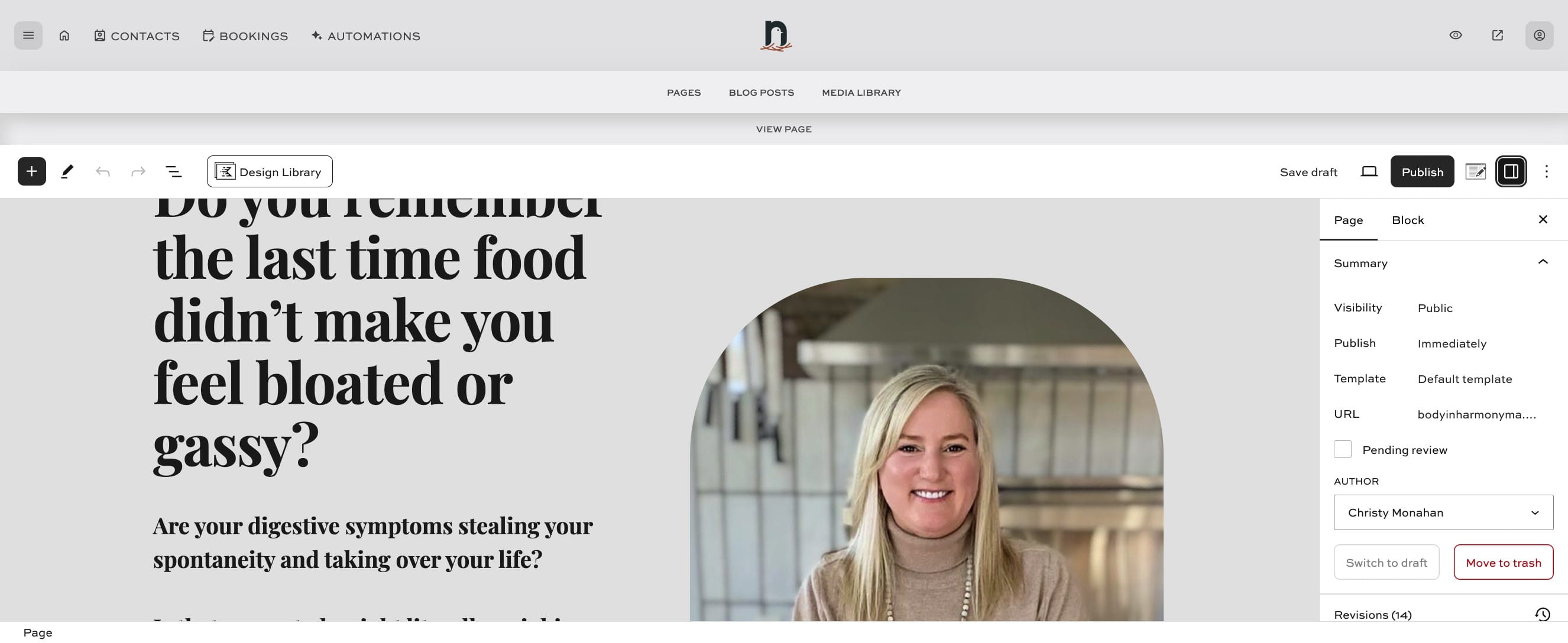
Click on the 'Page Settings' icon.

2
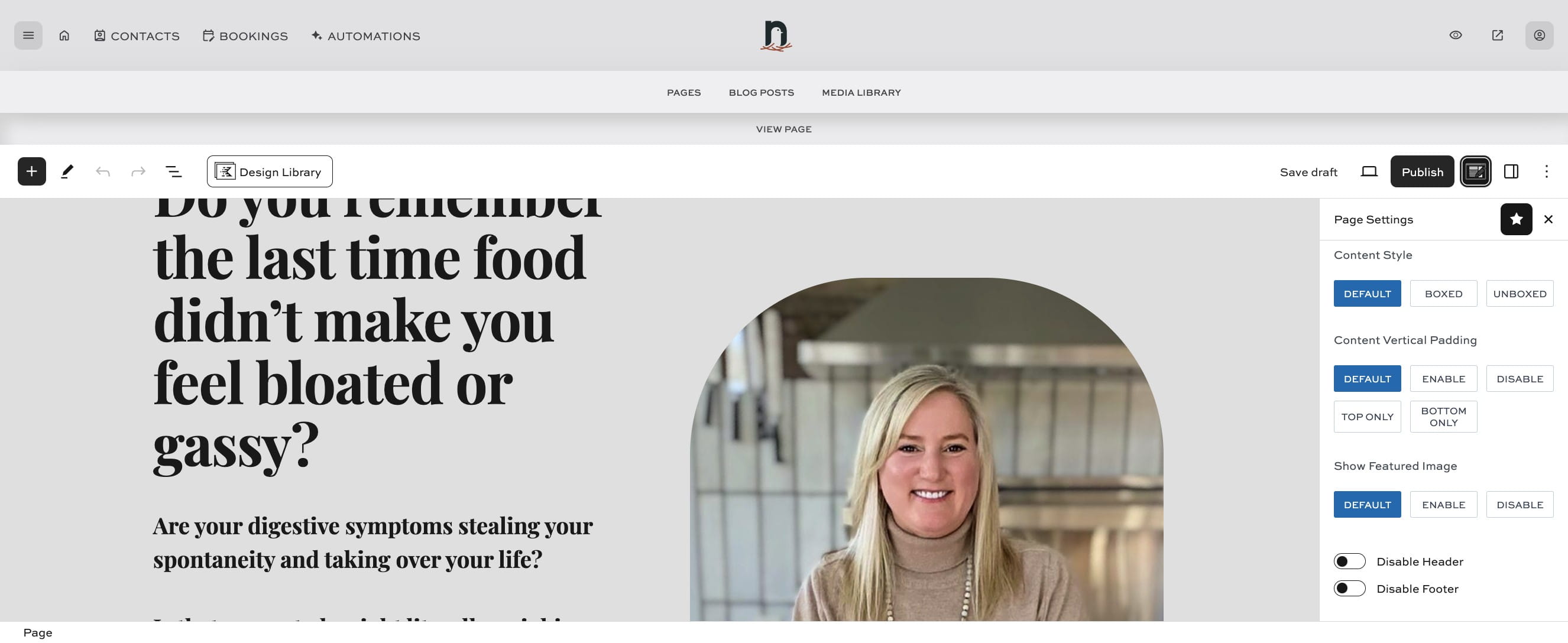
Under 'Content Vertical Padding', click on "Disable". This removes the extra padding from the top and bottom of the page.
3
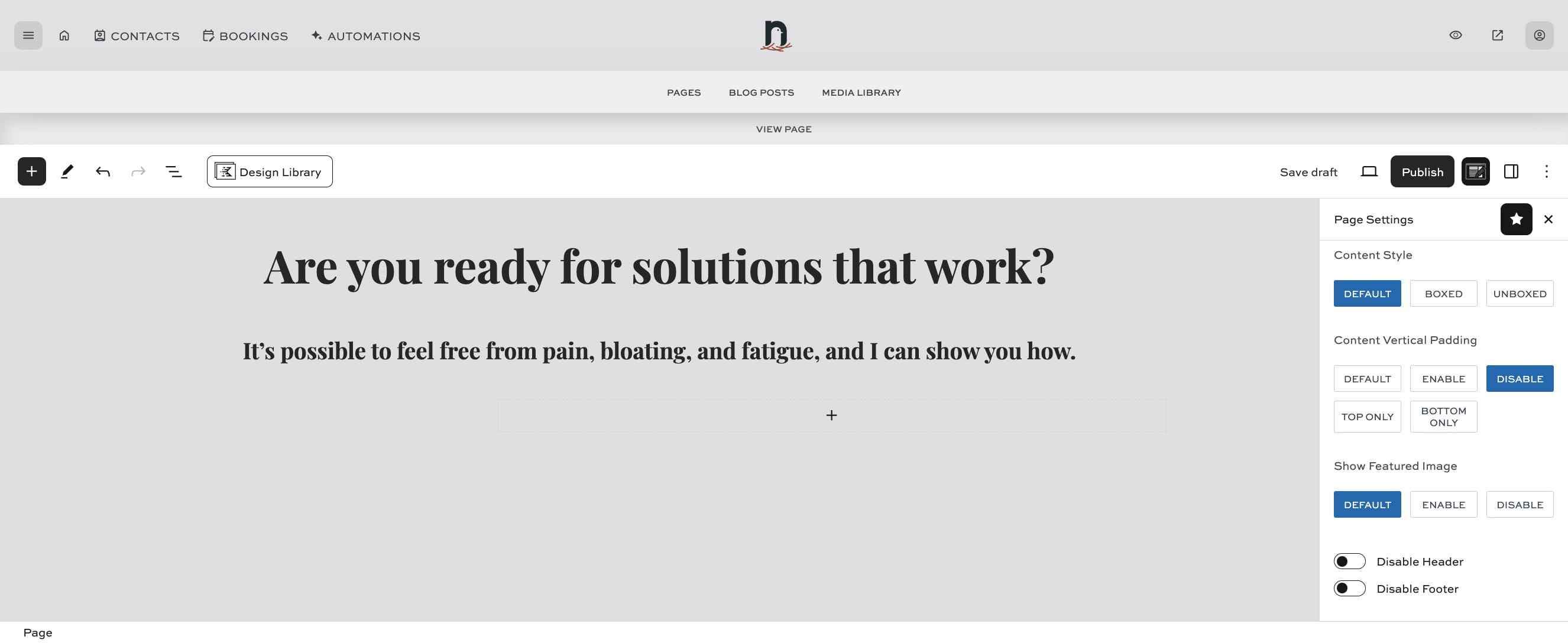
Let's clear up these empty blocks.
4
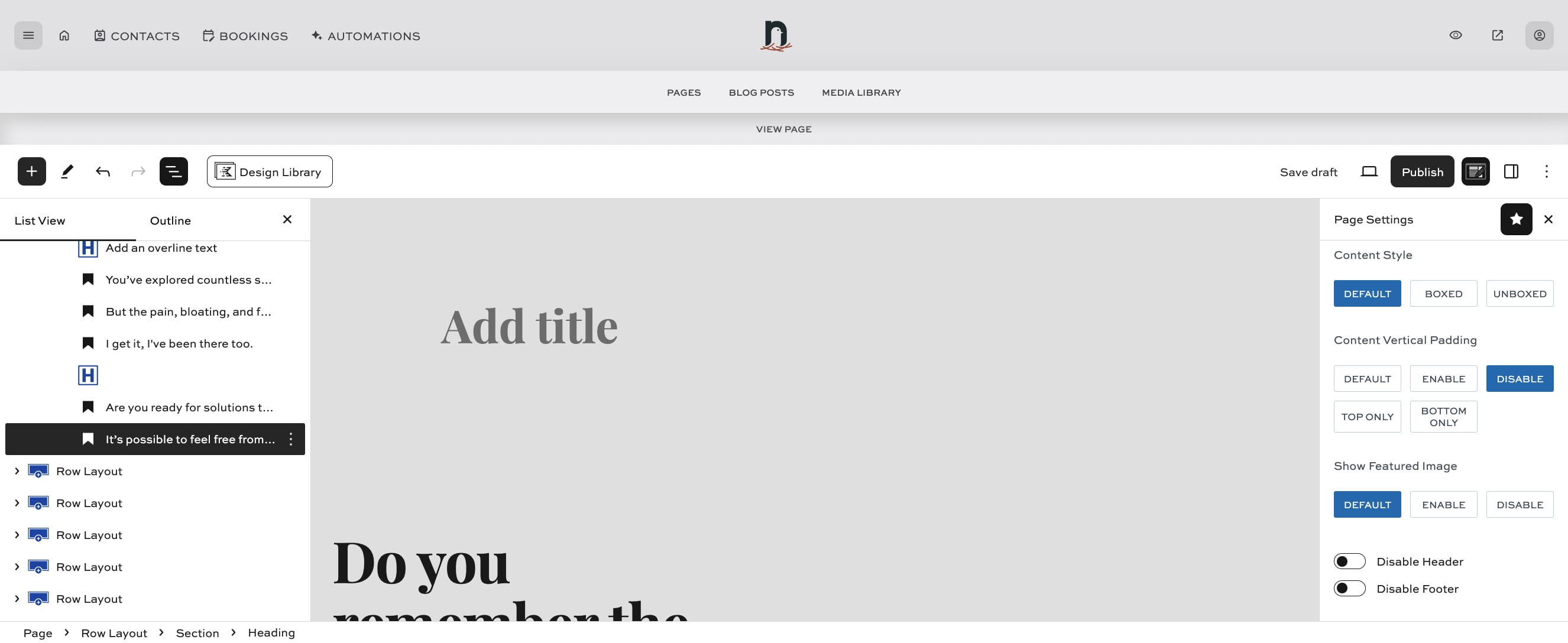
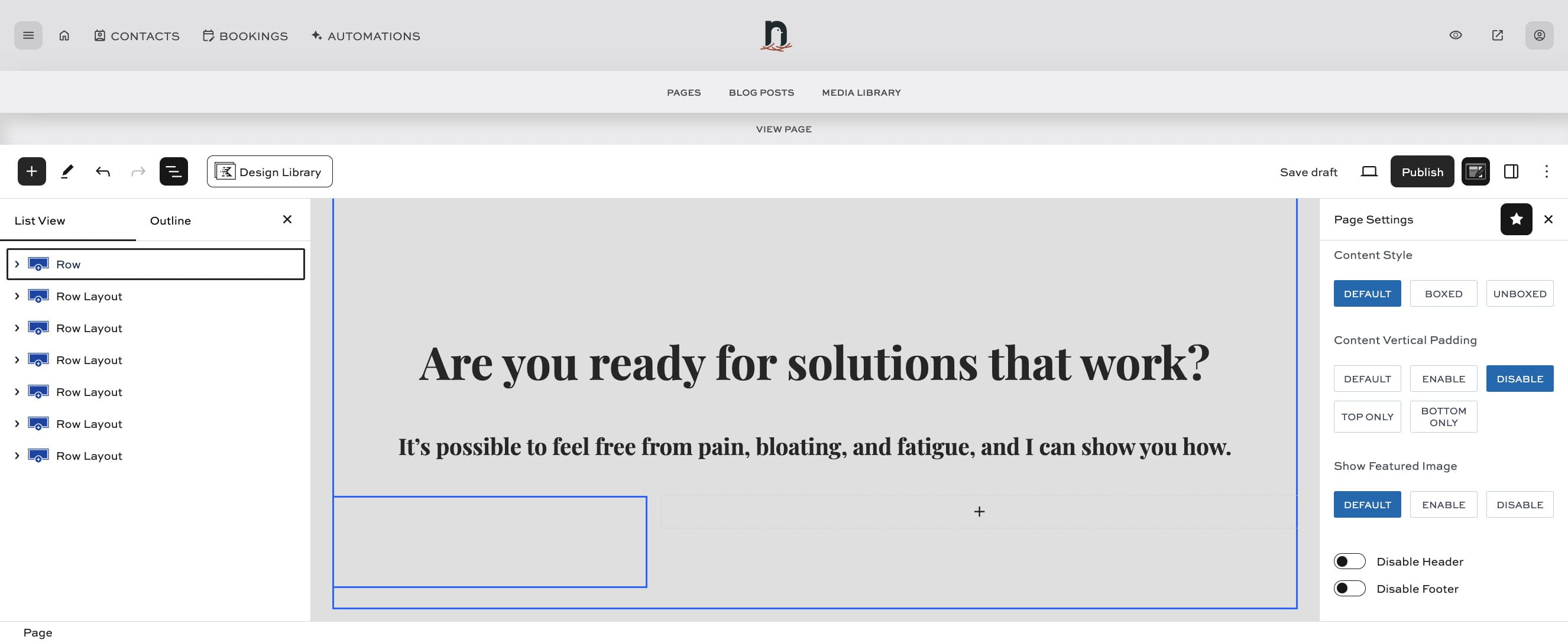
Clicking the 'Document Overview' icon allows you to see the sections of the page in a list view.
5
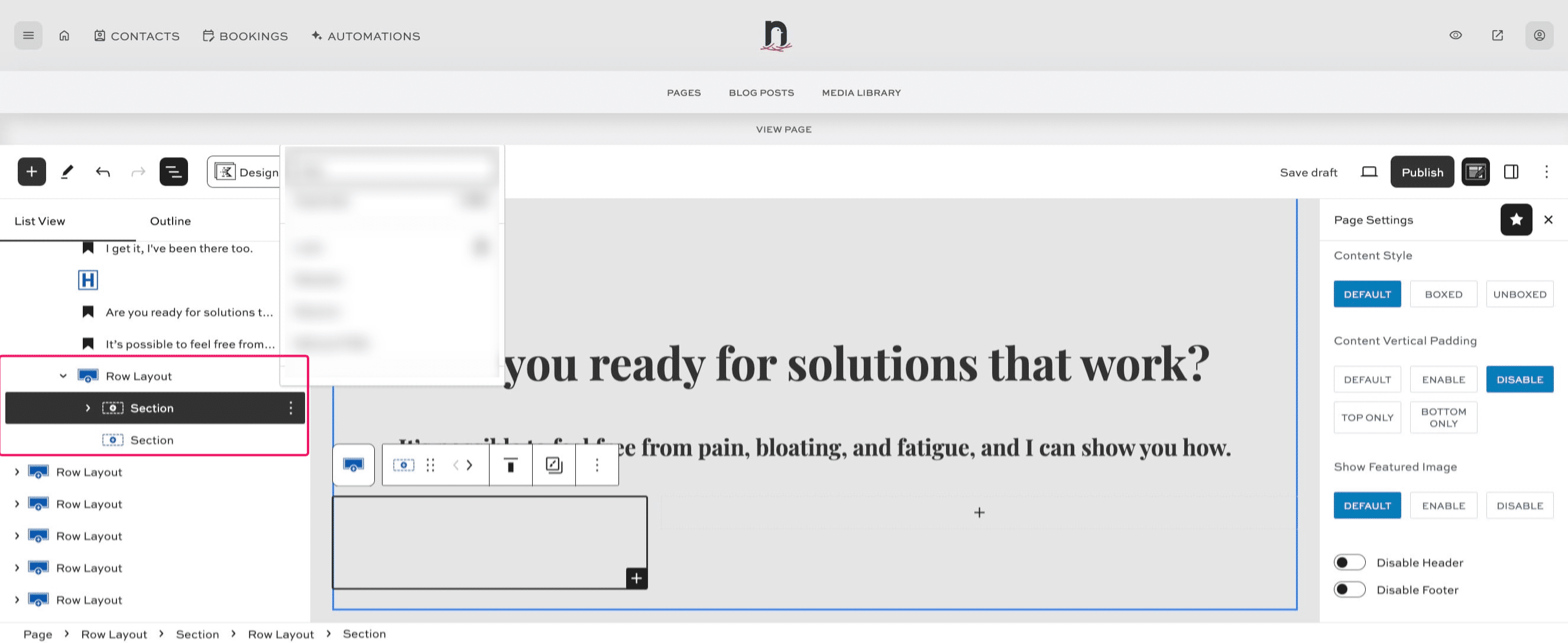
Select the section in the page, and you'll be able to see which Section / Row it is in the List View.
6
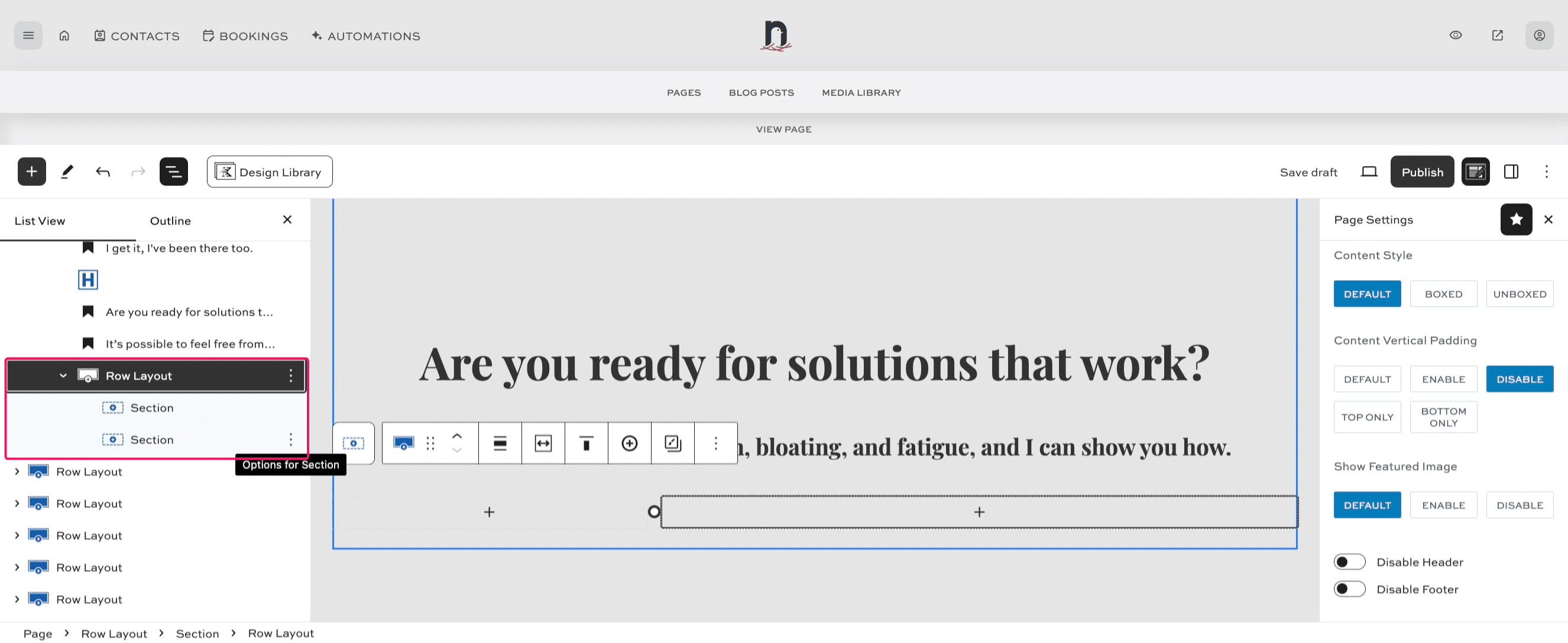
Click on 3 dots at the right of the Row Layout
7
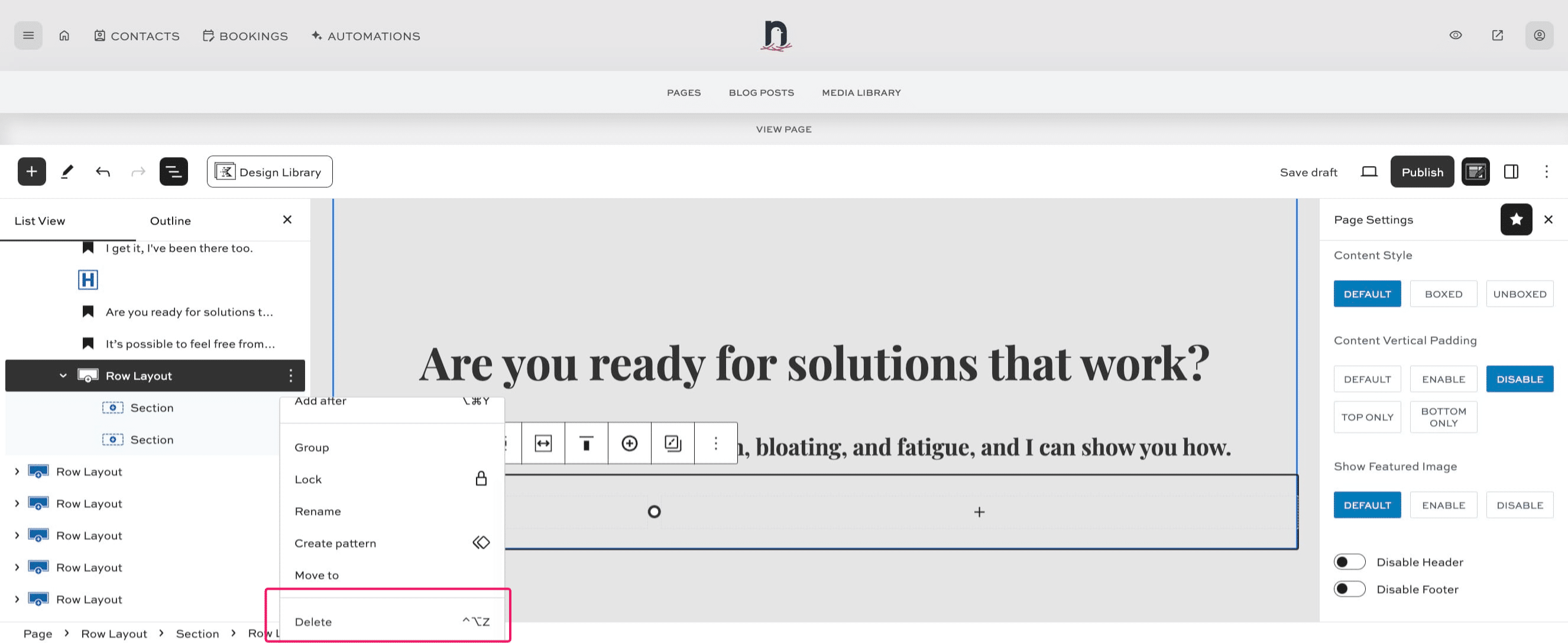
Click on "Delete"
8
Done 🚀