How to add a new affiliate (& associate them with a landing page)
How to add a new affiliate and how to associate them with a landing page.
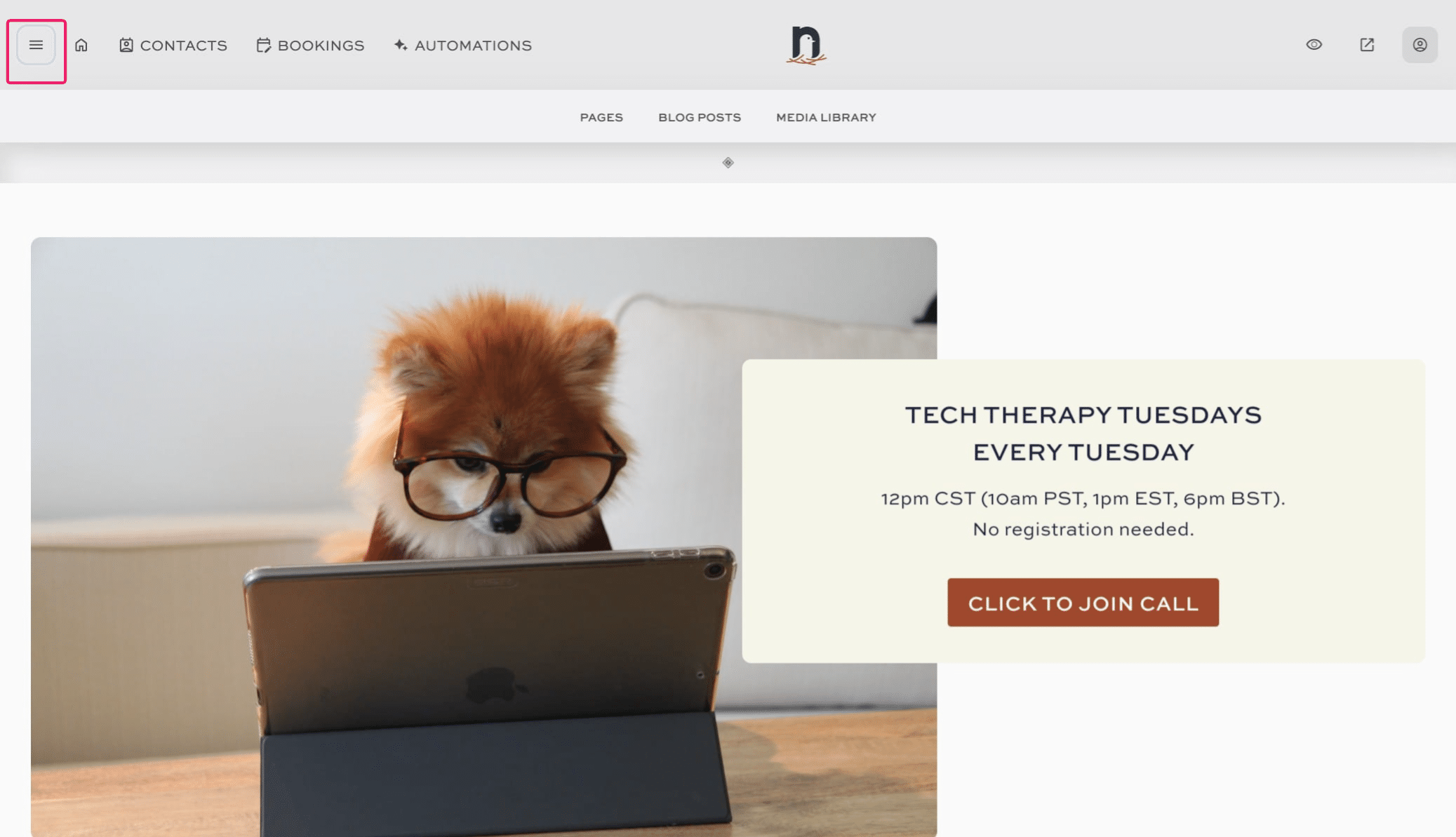
Click on the "menu" icon

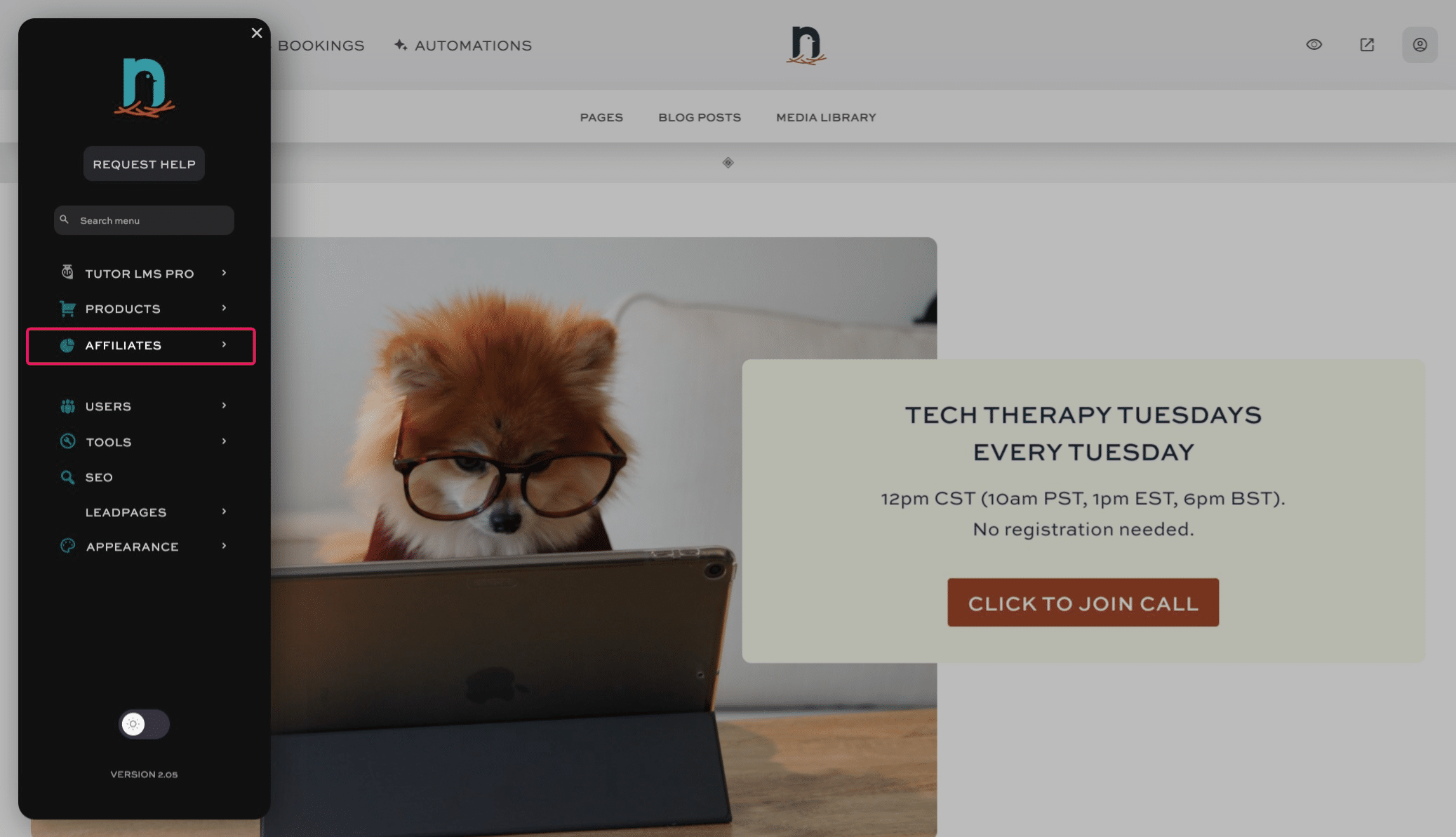
Click on "AFFILIATES"
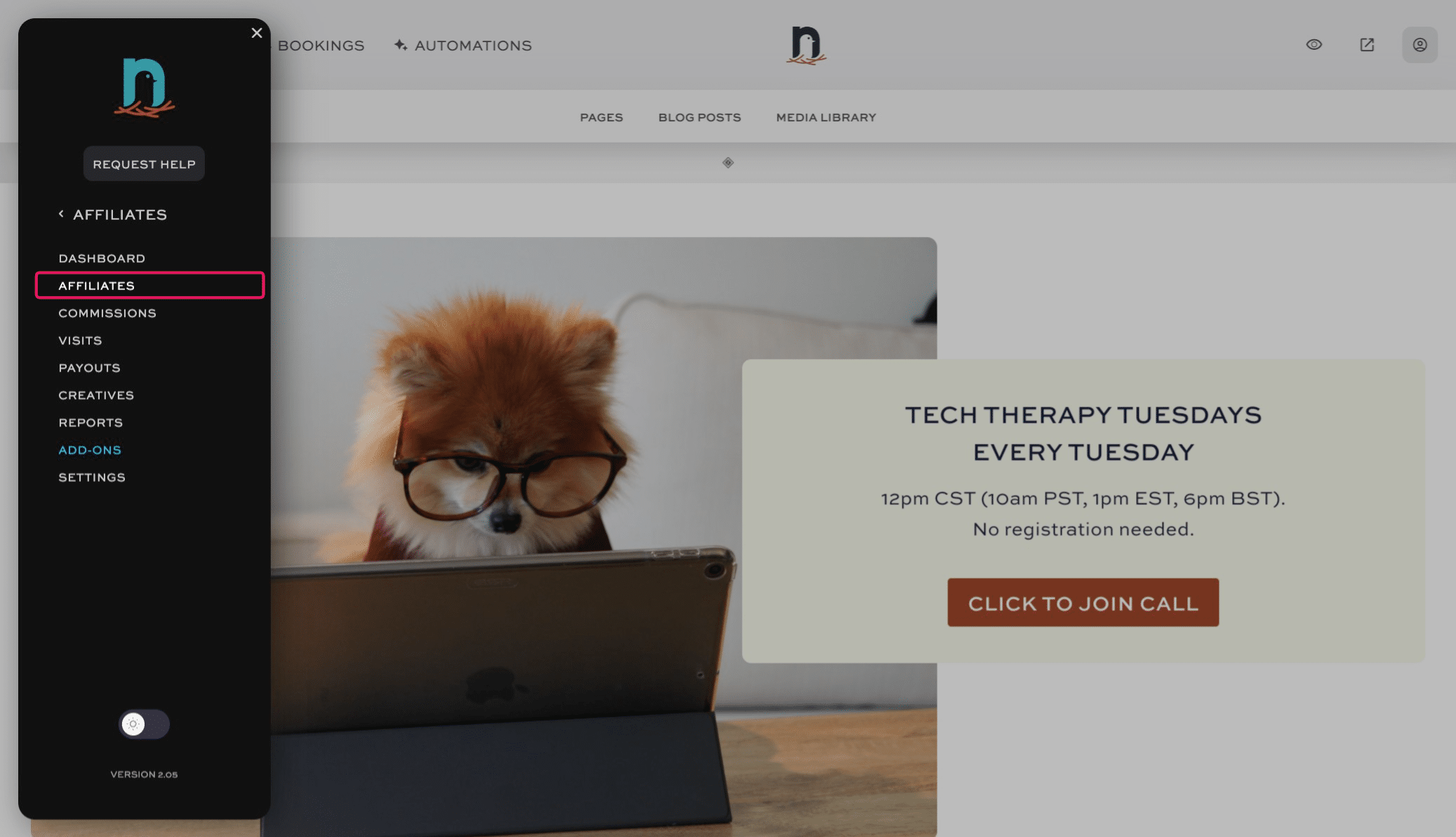
Click on "Affiliates"
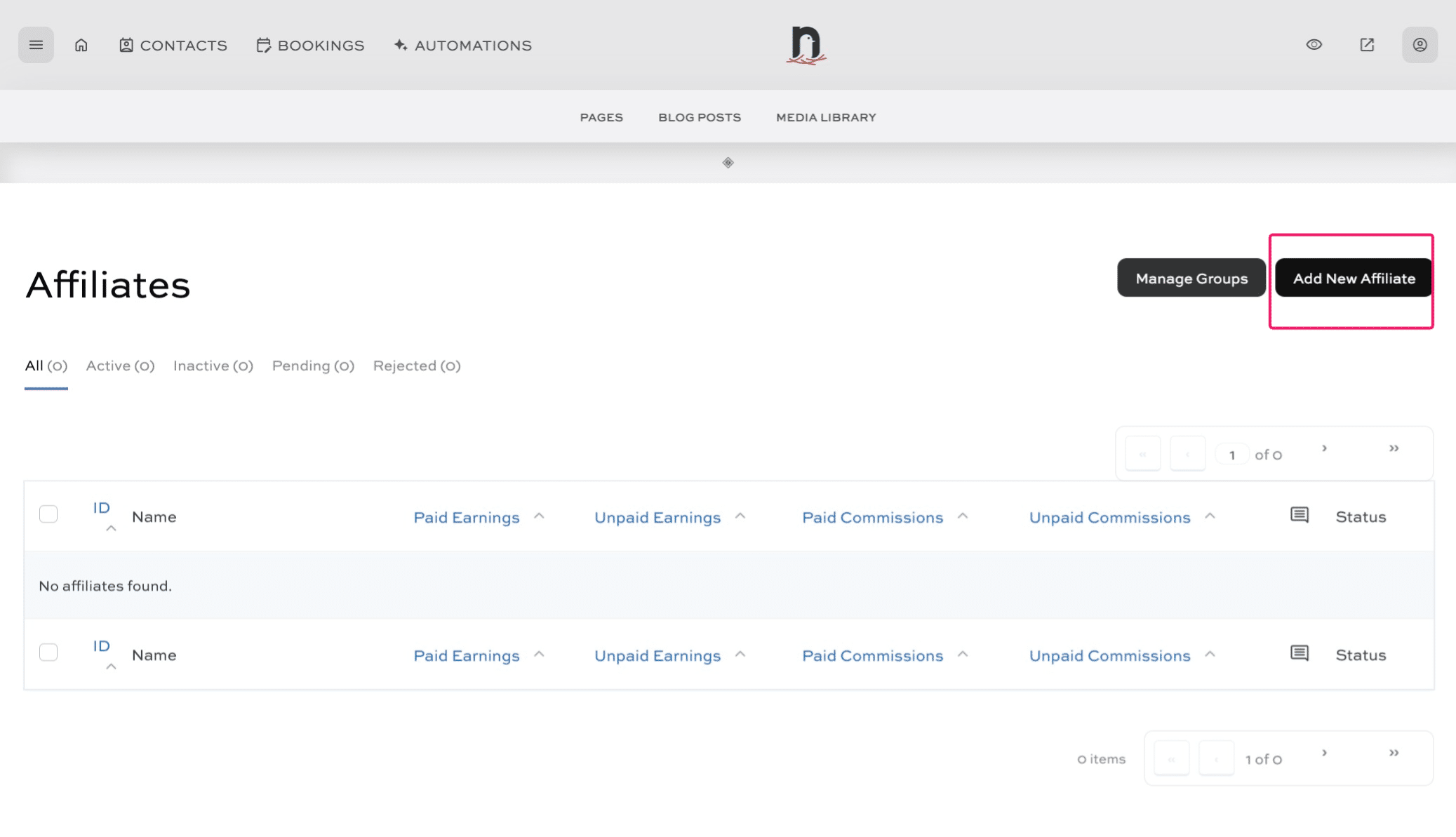
Click on "Add New Affiliate"
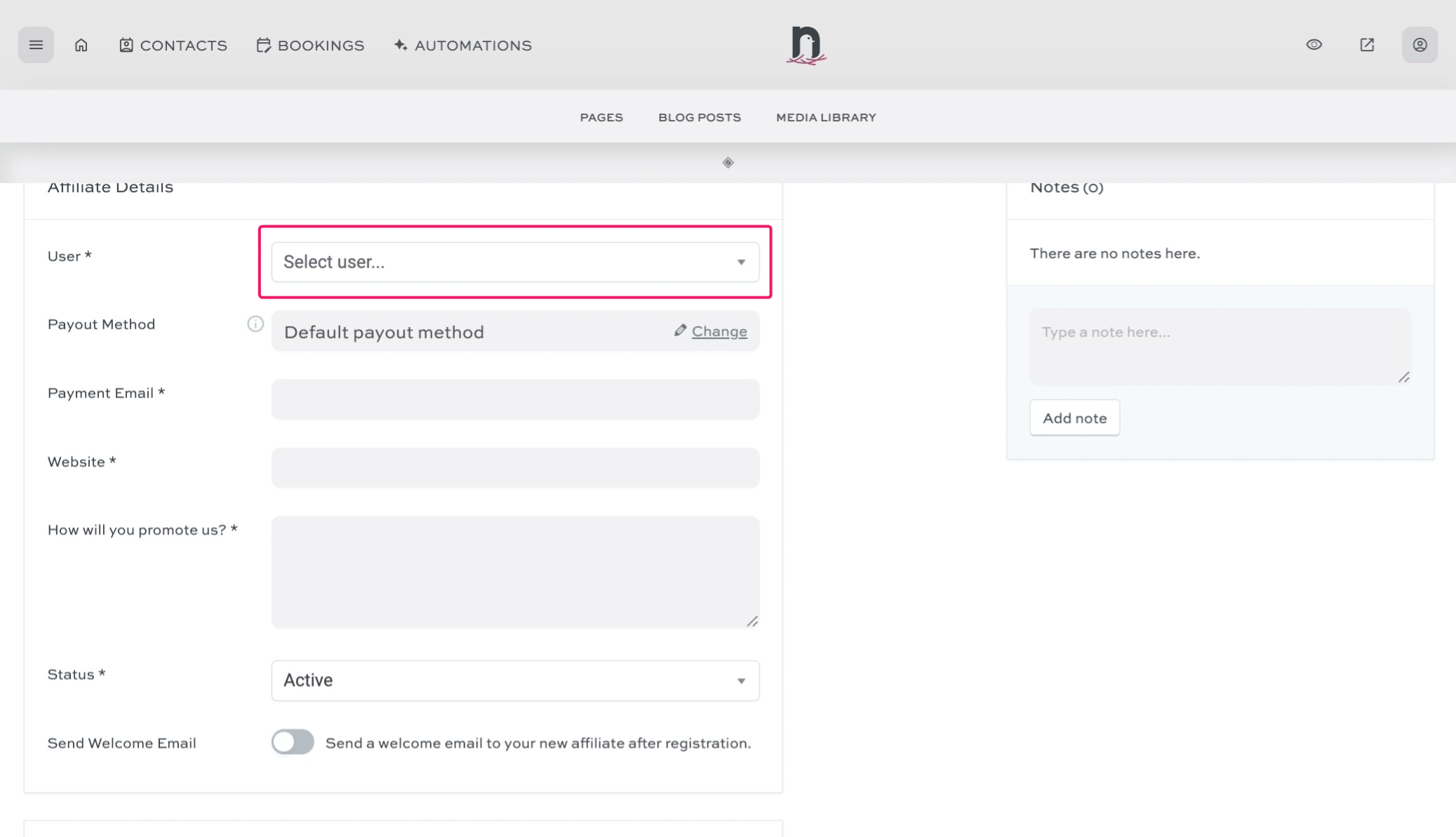
Click on the 'Select User...' drop-down/
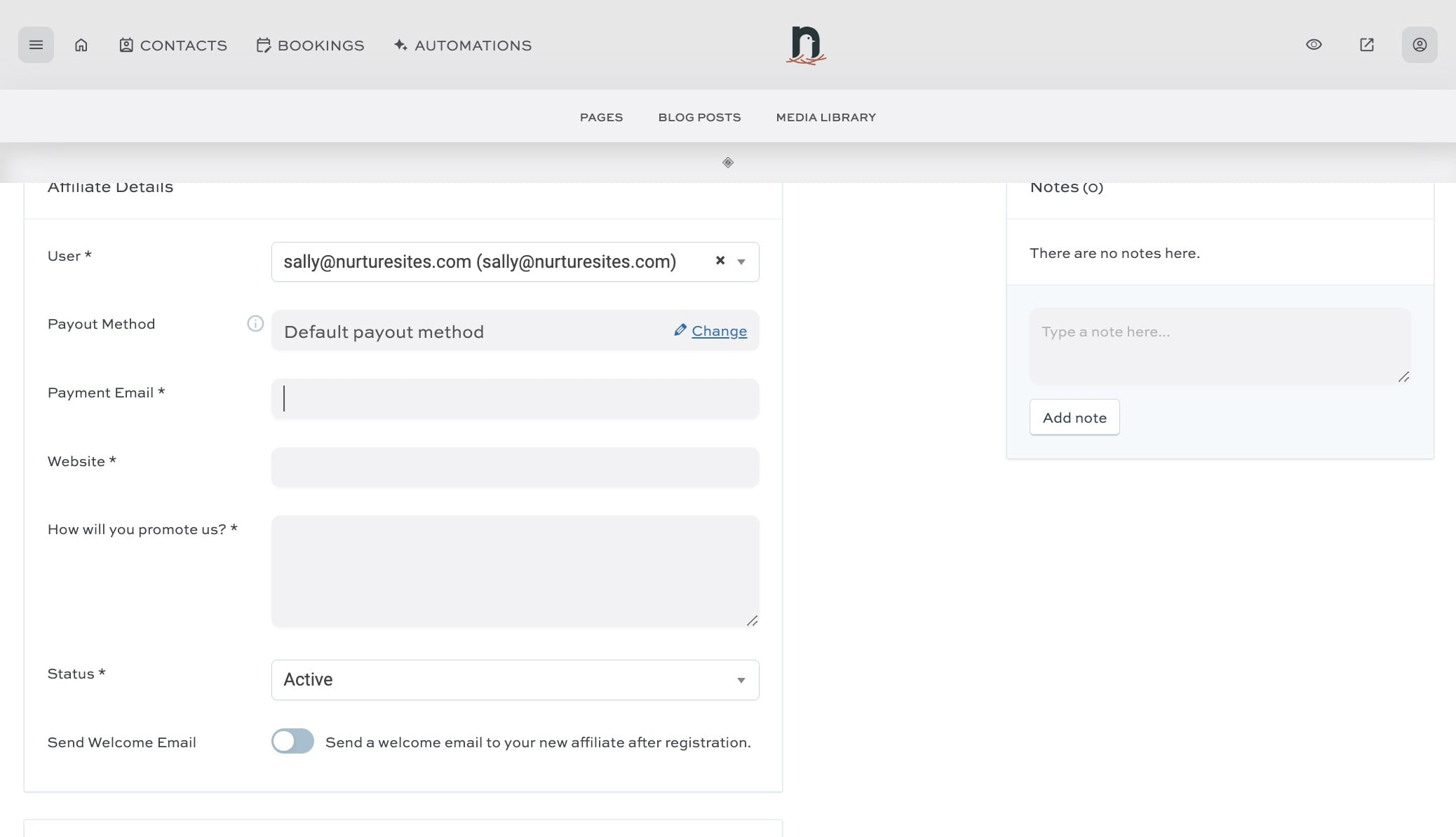
Select the user you want to make into an affiliate.

Enter the user's payment email. This is the PayPal address where they want to receive payment.
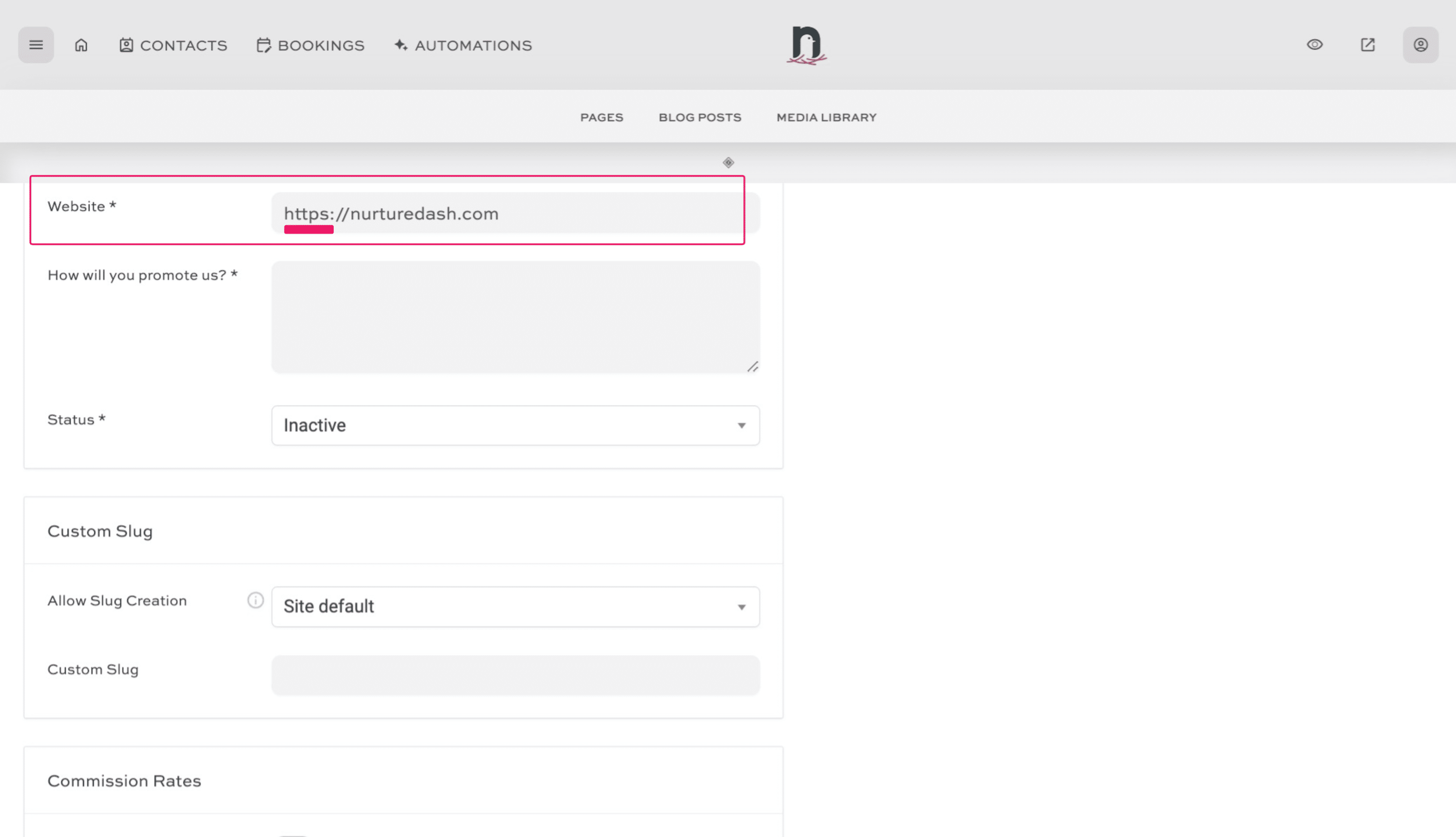
Enter their website address. Be sure to use the prefix https://
Enter something in the 'How will you promote us?' box.
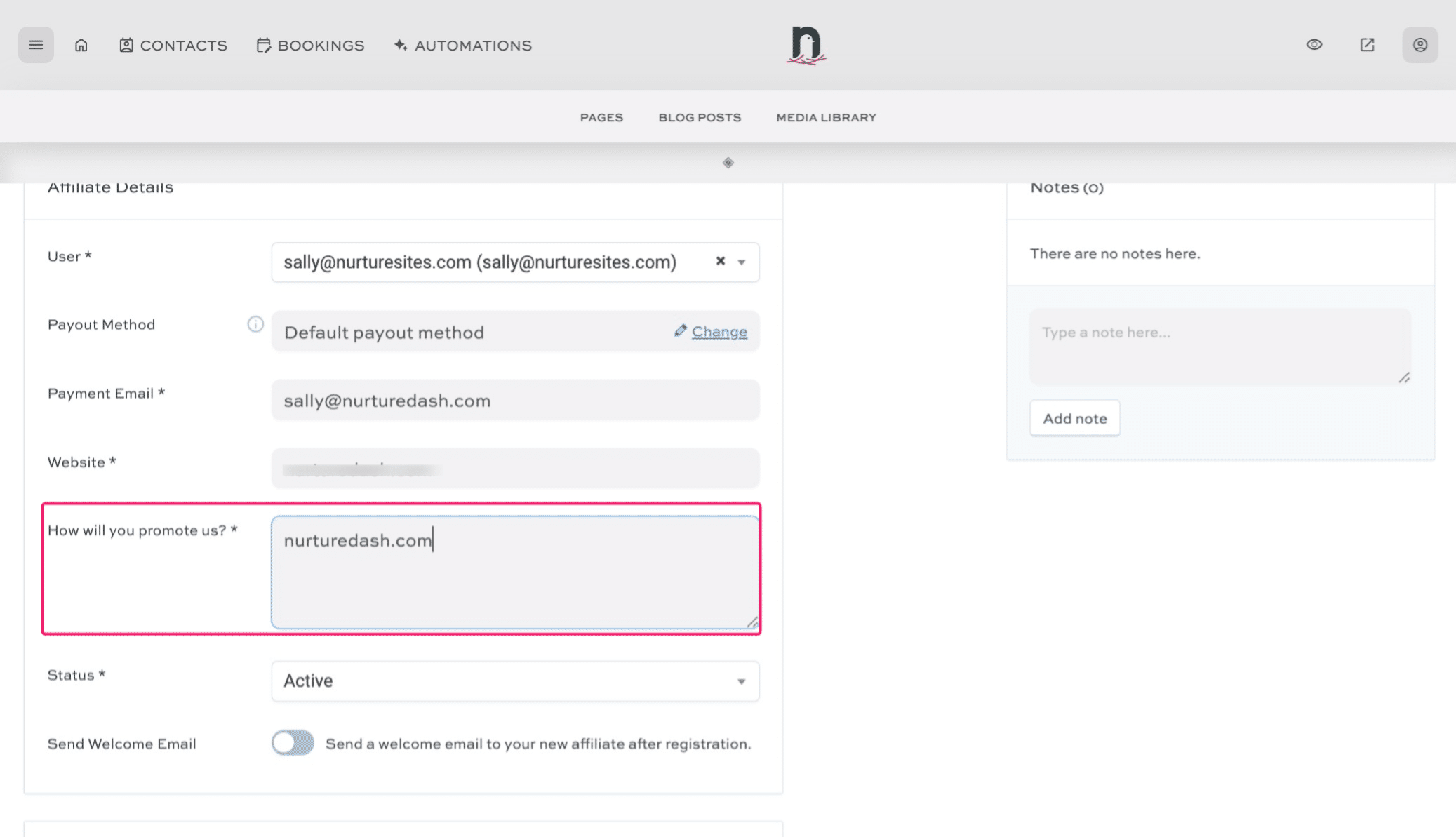
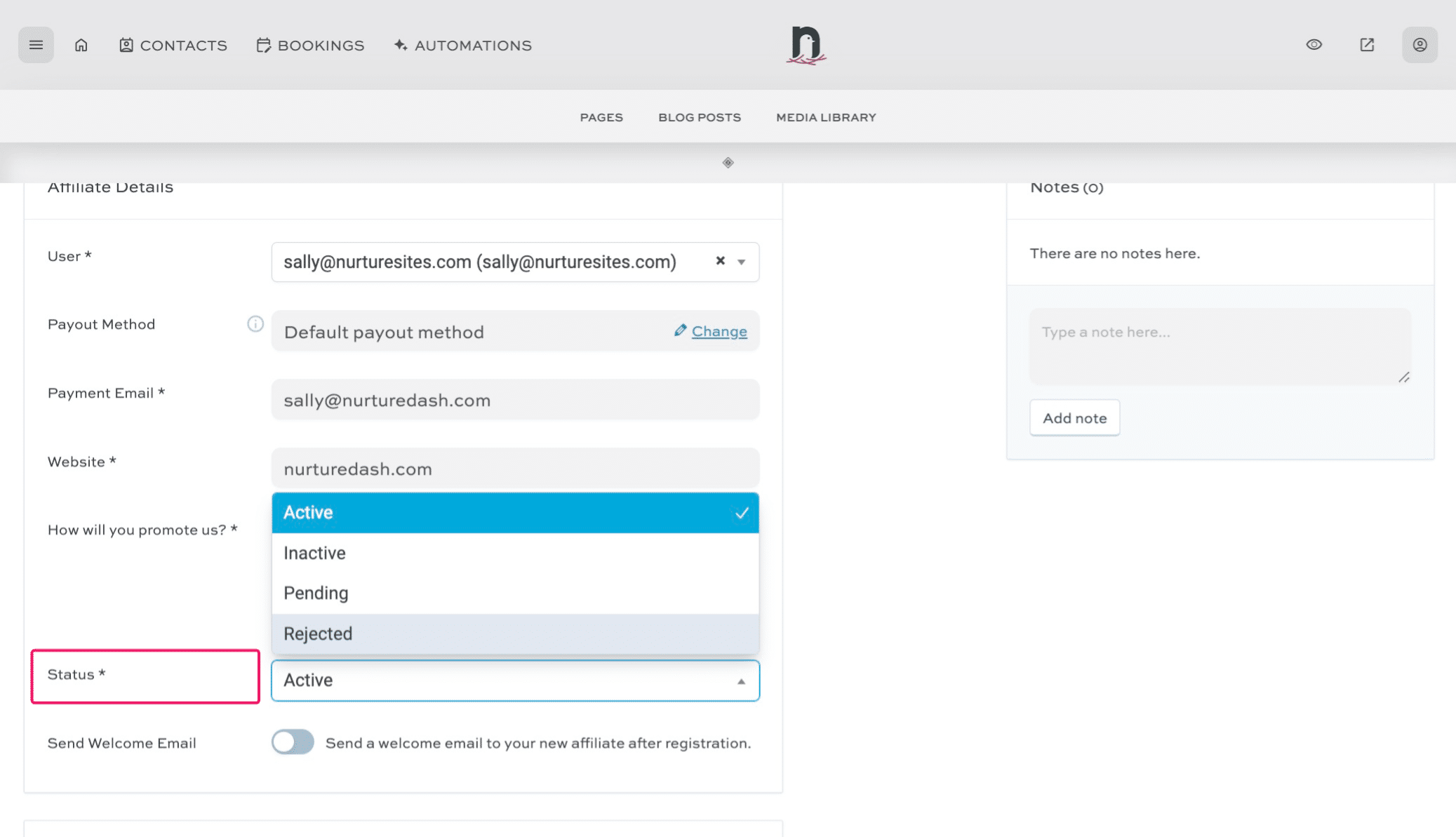
Change 'Status' to "Active"
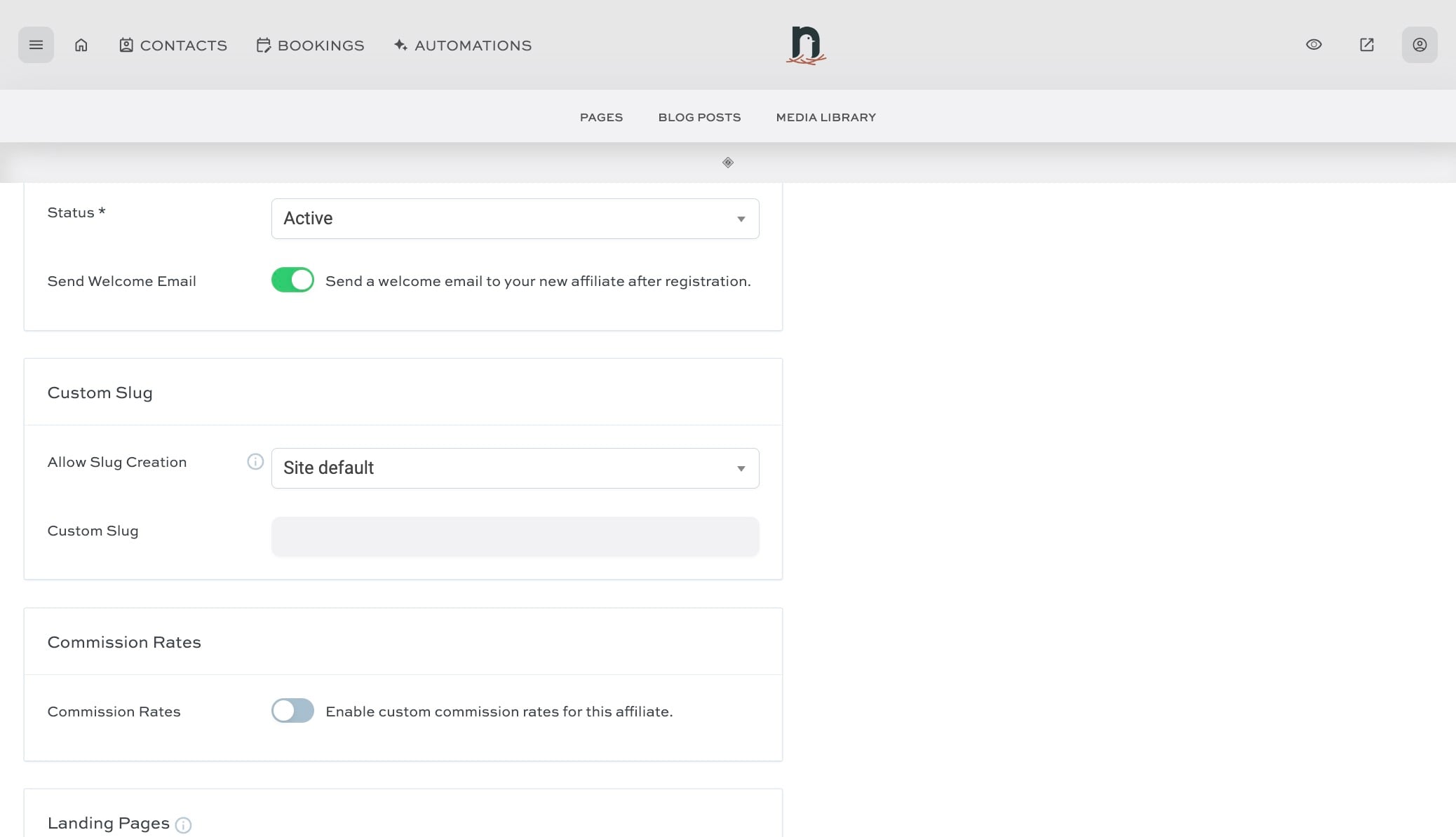
Toggle 'Send Welcome Email' to ON position (if you want them to receive a welcome email)
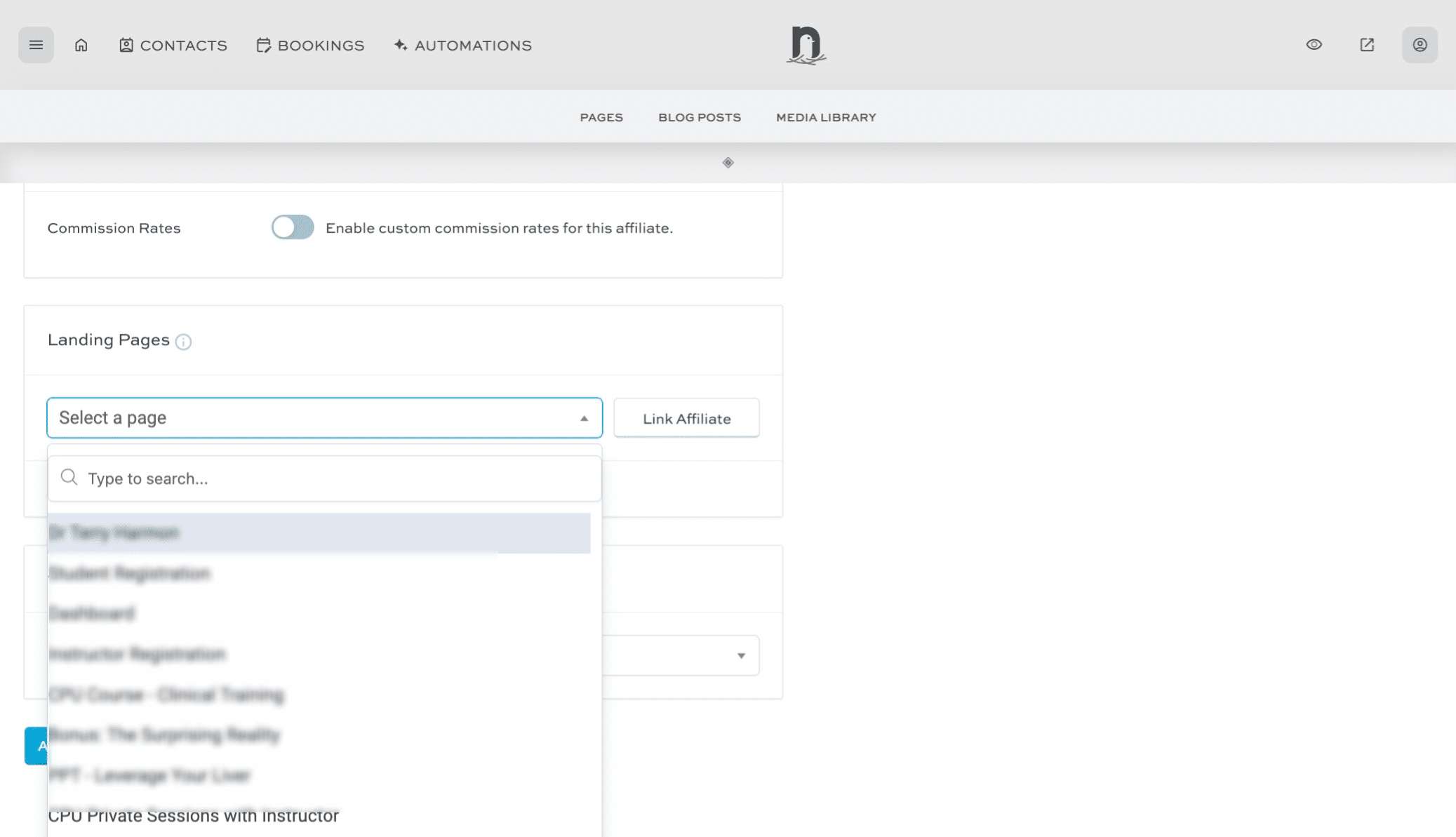
Under 'Landing Pages' click the 'Select a page' dropdown
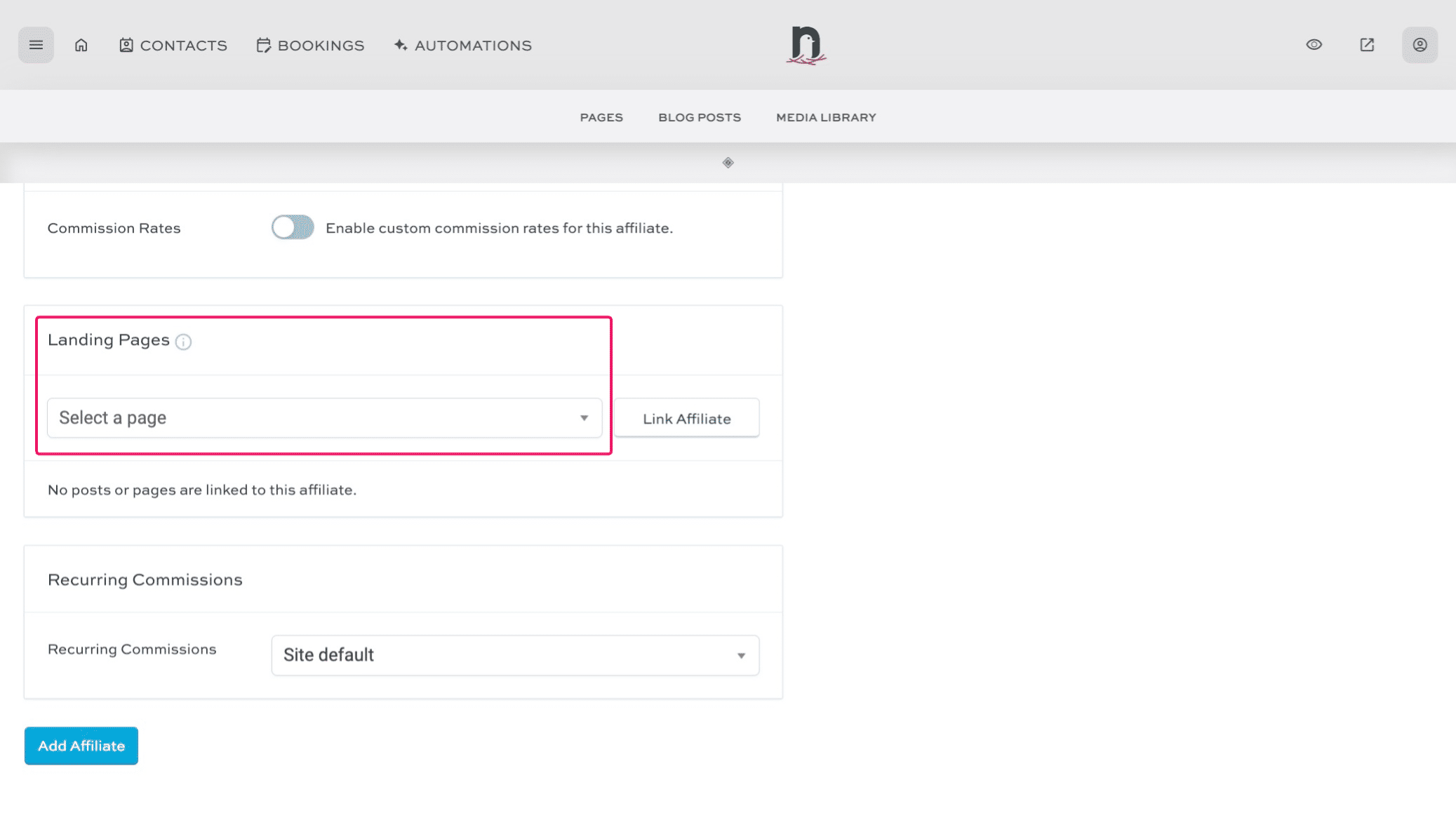
Select the landing page
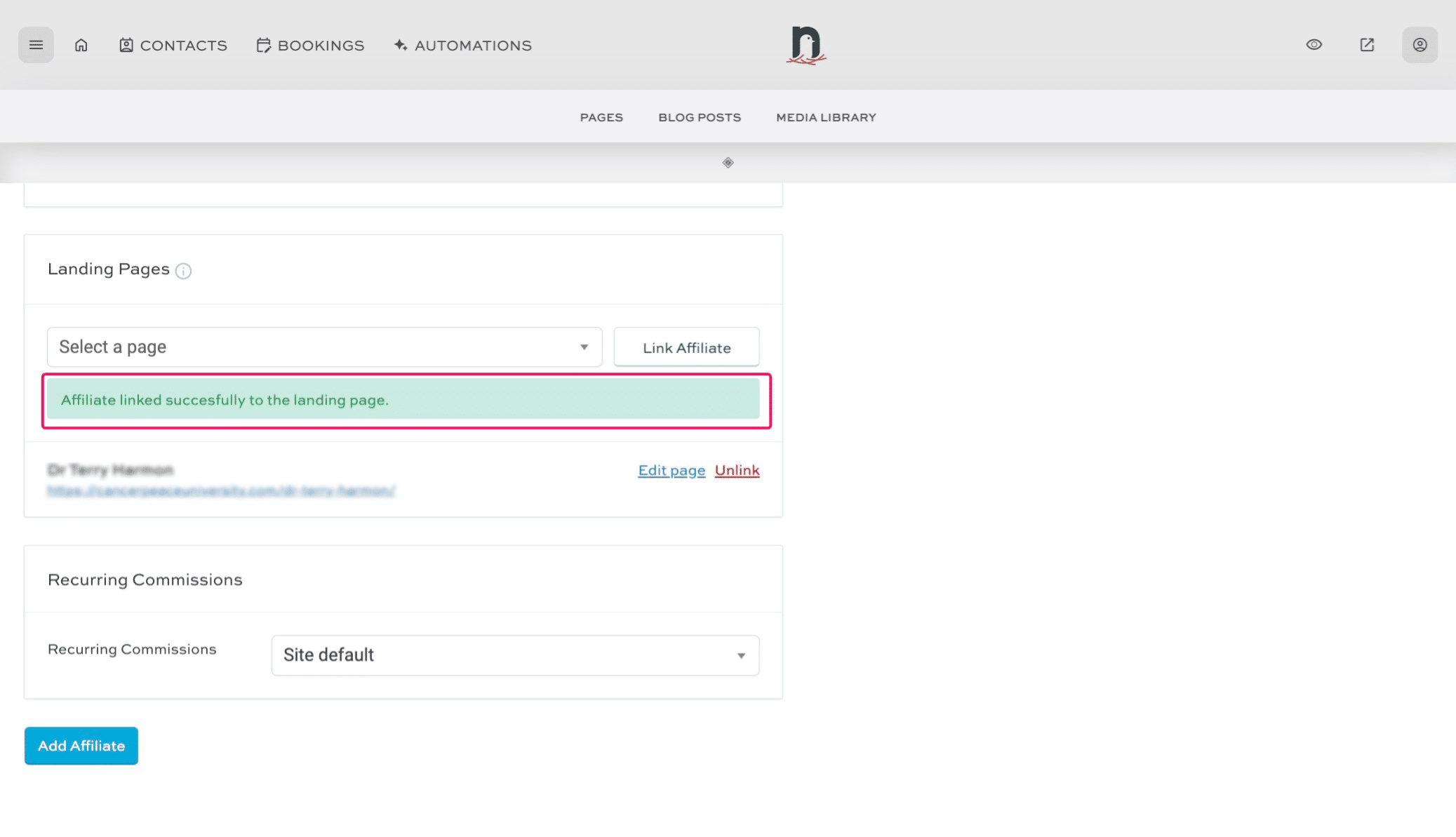
Click on "Link Affiliate"
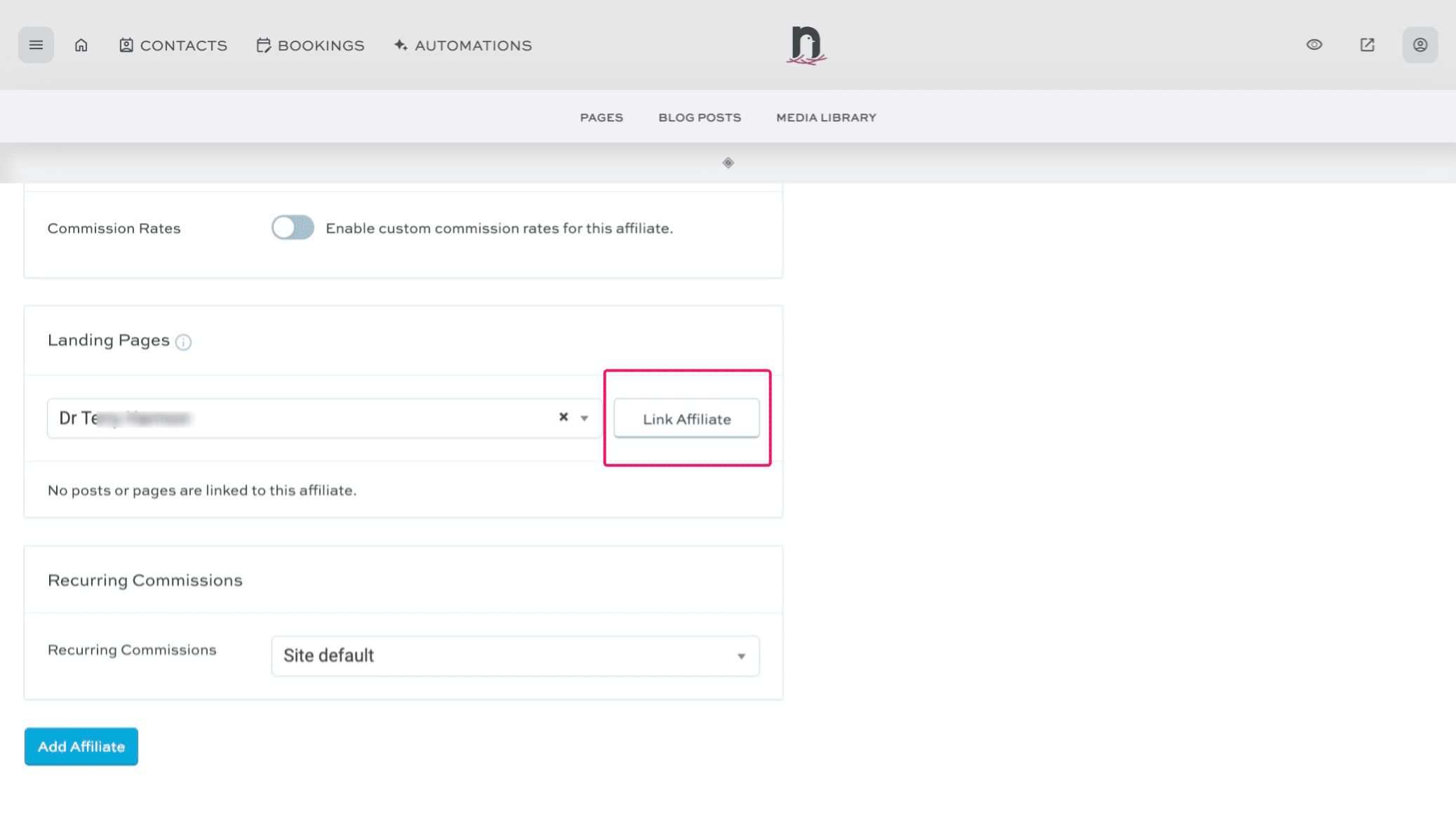
You should see a green message confirming the affiliate has been linked to the landing page. You are done! 🚀